In the internet age, we’re constantly asked to register on various websites. Want a promo code? Register. Trying a new app? Register again. The result: your primary inbox gets flooded with marketing emails, and your privacy may be at risk. That’s where a temporary Gmail account becomes a very practical solution. This guide shows you how to create a temporary email in 5 minutes and explains when you should (and shouldn’t) use it.
Many people have had this experience: after signing up on a website, they start receiving dozens of marketing emails every day and can’t even find an unsubscribe button. Or they register on an unfamiliar platform, and then their personal information gets sold—suddenly, the spam calls begin.
A temporary email can help you avoid these issues.
Common use cases for temporary emails include:
In short, for anything you don’t need long-term and that doesn’t involve sensitive information, a temporary email is a great privacy tool.
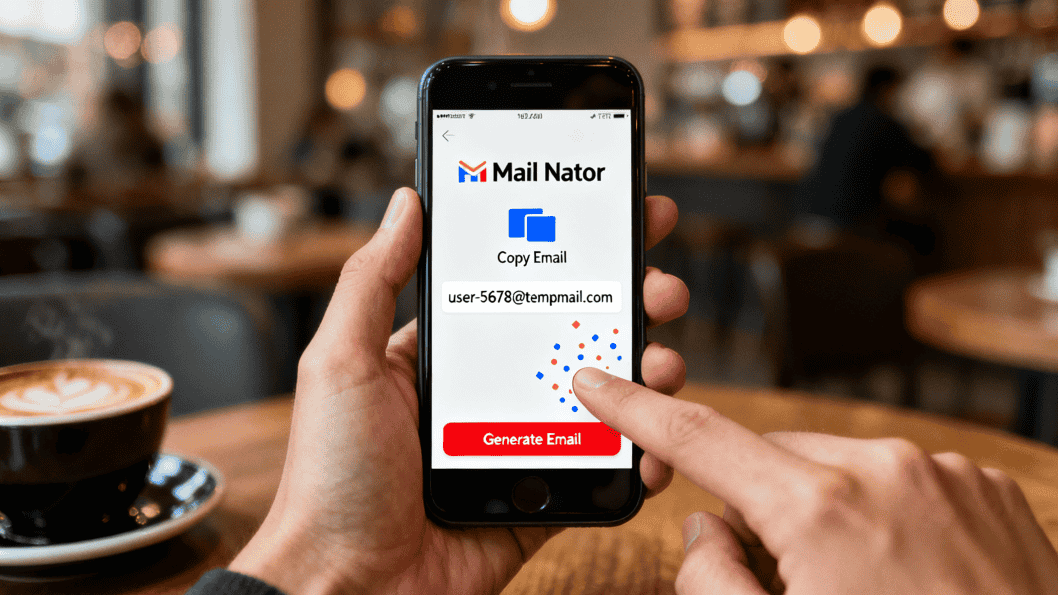
There are many temporary email services out there, but Gmail Nator is one of the simplest and most straightforward. Its biggest advantage: you can use it right in the browser—no registration, no forms, not even a button click required. The page automatically generates a usable Gmail address.
Creating a regular Gmail account requires entering your name, setting a password, verifying a phone number, and more. That whole process can easily take 10 minutes. Gmail Nator compresses that into 10 seconds: go to the site → copy the email address → start using it.
The interface is very minimal. In the center of the page, you’ll see an auto-generated Gmail address with two buttons next to it: “Copy” (copy the address) and “Go” (view inbox). The design philosophy is clear: fast, use-and-go, and zero learning curve.
More importantly, Gmail Nator generates real Gmail-domain addresses (ending in @gmail.com or @googlemail.com). Many websites restrict known disposable email domains, but Gmail domains are widely accepted, so your registration success rate is much higher.
Open your browser and type “Gmail Nator” into the Google search bar. Click the official link in the results. Make sure you’re on the correct site to avoid phishing or copycat pages. The real Gmail Nator interface is very simple, with no complicated ads or pop-ups.
Once you’re on the site, it will automatically display a temporary Gmail address in a format like xxxxx@gmail.com or xxxxx@googlemail.com. You’ll see a “Copy” button next to the address—click it to copy the email to your clipboard.
The address is completely random, and each time you refresh the page, you get a new one. If you don’t like the current address (too long, hard to read, etc.), just refresh the page to generate another.
After copying the address, go to the website where you want to register and paste it into the email field. When that site sends a verification email to your temporary address, go back to the Gmail Nator page and click the “Go” button. You’ll be taken to the inbox page, where you can see all emails sent to that address.
Click an email to view its contents and grab the verification code or confirmation link. Delivery is near real-time—emails usually arrive within a few seconds, and you don’t have to keep manually refreshing.
Note that temporary email addresses typically last only a few hours to one day. Use the verification code as soon as you receive it; don’t wait too long.
Temporary emails are convenient, but they’re not a cure-all. Understanding where they fit (and where they don’t) helps you avoid unnecessary trouble.
Temporary emails are time-limited. They usually expire within a few hours to a day. This means:
Another limitation is security. While Gmail Nator itself doesn’t store your personal data, the email address and inbox are effectively public: anyone who knows the address might view incoming messages. So do not use temporary emails for anything involving sensitive or personal data.
For individual users, using a temporary email occasionally is perfectly fine. But if you need to manage multiple accounts—for example, running several Facebook shops, handling dozens of social media profiles, or doing cross-border e-commerce across multiple platforms—temporary emails alone won’t cut it. In that case, you need a professional multi-account management tool, such as the MasLogin fingerprint browser.
Imagine this scenario: you run 5 stores on Amazon, and each store needs its own account and email. If you register with temporary emails, those addresses will soon expire and you’ll miss important platform notifications. If you log in to all accounts on the same computer and browser, the platform may detect the same browser fingerprint and flag them as linked accounts, risking bans.
That’s why professional users turn to fingerprint browsers. MasLogin can create an isolated browser environment for each account, each with a unique browser fingerprint (including User-Agent, Canvas fingerprint, WebGL, etc.). This way, even if you log in to multiple accounts on the same machine, platforms can’t easily detect any connection between them.
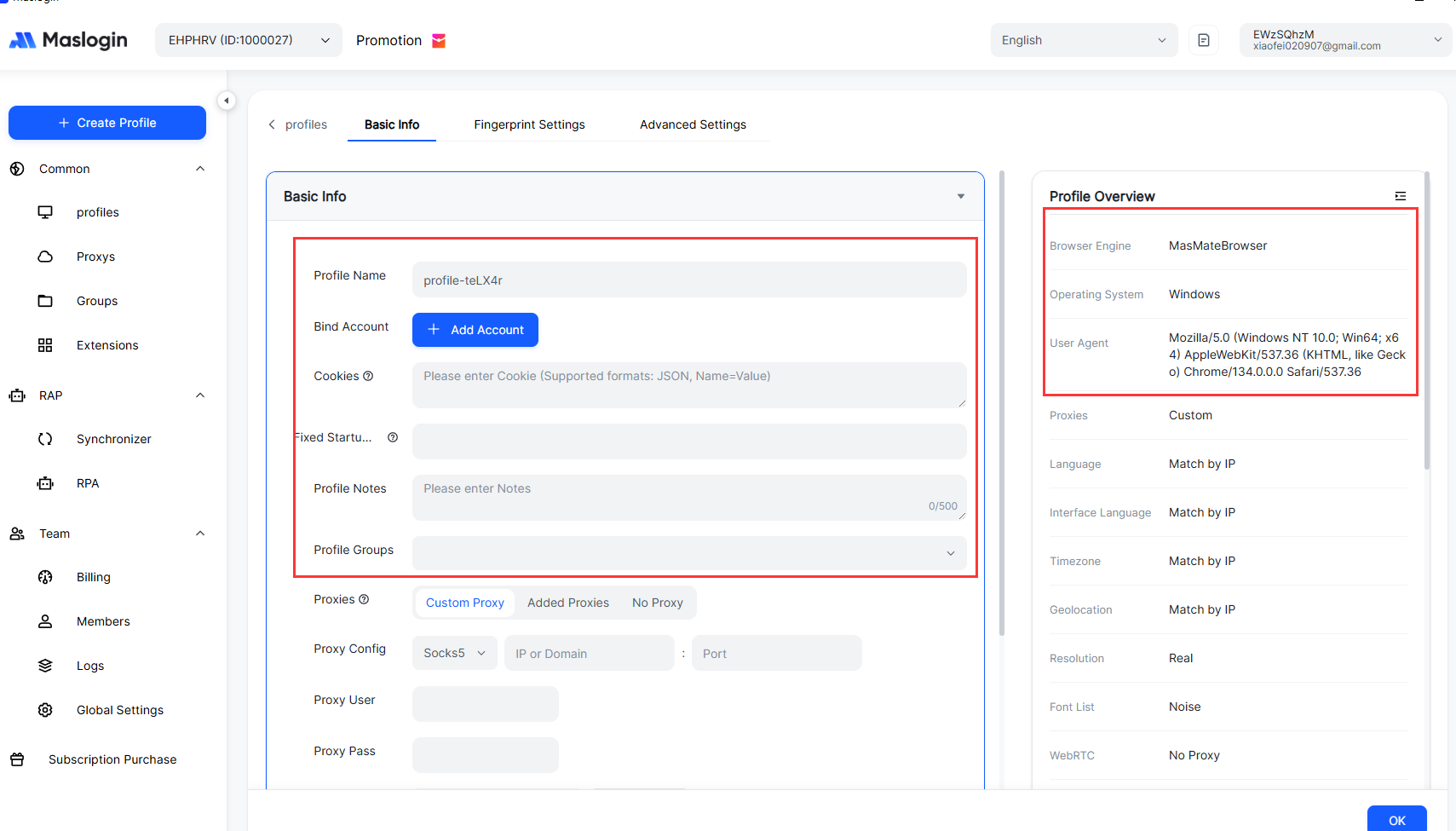
If you need to register accounts in bulk for testing or short-term operations, you can combine temporary emails with MasLogin:
Even more importantly, MasLogin supports team collaboration. If your team manages many accounts together, you can assign permissions within MasLogin so each member only accesses the accounts they’re responsible for—improving efficiency and security at the same time.
For long-term, business-critical accounts, you should still use regular email addresses and rely on MasLogin’s fingerprint isolation to prevent account linkage. For more details, see the documentation in the MasLogin Help Center.
There are plenty of disposable email services; Gmail Nator isn’t the only option. But in terms of stability, ease of use, and success rate, it’s one of the more reliable choices. Other services like 10 Minute Mail or Guerrilla Mail also work, but some sites simply refuse these less common domains.
For individual users who occasionally sign up for a few websites, Gmail Nator is more than sufficient. However, if you’re an e-commerce seller, social media marketer, or cross-border operator who needs to manage multiple accounts long term, it’s more cost-effective to invest in a professional tool like MasLogin.
Temporary and regular email addresses each have pros and cons. Temp emails are fast, anonymous, and leave fewer traces—but they can’t be used long-term and are less secure. Regular email is stable and secure but more prone to spam.
The best strategy is to choose the right tool for the job:
This way you can protect your privacy without sacrificing usability.
Temporary emails are a simple, practical privacy tool, ideal for short-term, low-risk registrations. Just remember: they cannot replace regular email and are not appropriate for important accounts. If you need to manage multiple accounts—especially for business purposes—check out the multi-account management strategies on the MasLogin blog to find the approach that best fits your needs.
Temporary Gmail accounts usually remain valid from a few hours up to one day, depending on the service provider. Addresses generated by Gmail Nator are typically usable for up to 24 hours, after which they can no longer receive emails. It’s best to get and use your verification code right after registration.
Temporary emails are not suitable for bank accounts, payment platforms, or other high-value services. The addresses and inboxes are essentially public; anyone who knows the address might see incoming emails. On top of that, once the mailbox expires, you won’t be able to reset passwords or receive important notifications.
If you need to manage multiple accounts over the long term (for example, online stores or social media networks), a professional fingerprint browser like MasLogin is recommended. It creates independent browser environments for each account, prevents platforms from detecting links between them, and supports bulk management and team collaboration.
Gmail Nator uses real Gmail domains (@gmail.com and @googlemail.com), which most websites accept. Compared with other disposable email services that rely on niche domains, Gmail addresses generally have a much higher success rate. However, some websites may still detect that the address is disposable and block registrations.
There’s essentially no difference. Both terms refer to short-lived, throwaway email addresses. Different services may use different names, but the core functionality is the same. It’s best to choose well-known, stable providers and avoid unreliable, obscure platforms.
Outline