WhatsApp has become an essential communication tool for hundreds of millions of users worldwide. Whether you're staying in touch with family or connecting with friends and colleagues, this app offers convenient instant messaging. However, for first-time smartphone users or those switching to a new device, correctly downloading and installing WhatsApp might not be immediately intuitive.
This guide will walk you through two of the simplest methods to install WhatsApp, offering solutions that work regardless of your phone's system or whether you have a Google Play account.
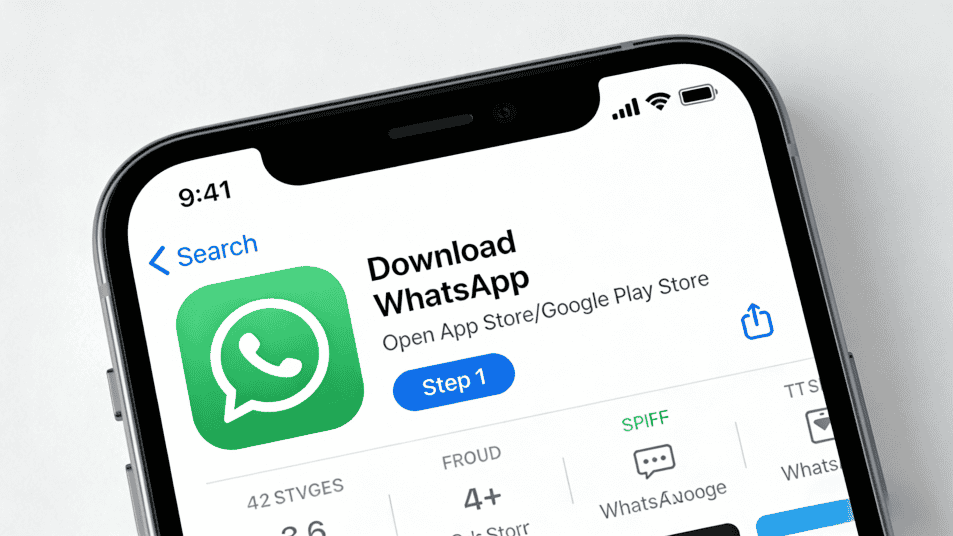
Method 1: Install via Google Play Store (Recommended)
This is the most standard and secure installation method. If your Android phone is already logged into a Google Play account, follow these steps:
- Open the Google Play Store Find the Play Store icon on your phone's home screen or app list and tap to open it.
- Search for WhatsApp Type "WhatsApp" into the search bar at the top. Relevant results will appear automatically.
- Tap the "Install" Button Locate the official WhatsApp Messenger app (usually the first result) and tap the green "Install" button.
- Wait for the Download to Complete The app will download and install automatically. This process typically takes from a few seconds to a few minutes, depending on your network speed.
- Open and Set Up Your Account Once installed, tap the "Open" button. For first-time use, you'll need to: Tap "Next" Read and agree to the User Agreement (tap "Agree & Continue") Allow WhatsApp to access your contacts, photos, etc. Enter your phone number and verify it Set up your profile (name, photo, etc.)
After completing these steps, you'll be ready to start chatting with your friends on WhatsApp.
Method 2: Install via APK File (No Google Account Needed)
If your phone doesn't have the Google Play Store pre-installed or you can't log into a Google account, you can download the APK installation file directly. This method is also secure, but it's important to download from official or trusted sources.
Step-by-Step Guide:
- Open Your Browser Use your phone's default browser or Google Chrome and enter your search query in the address bar.
- Search for and Access the Download Page Search for "WhatsApp download APK" and find a trustworthy third-party app store (like APKPure). These platforms provide official APK files, ensuring the app's source is secure.
- Select the Correct Version On the download page, scroll down to find the "Download APK" button. Confirm the app version details are correct before tapping to download.
- Allow Installation from Unknown Sources When installing an app via APK for the first time, your system might prompt you with a "disallow installation of unknown sources" warning. You'll need to: Go to your phone's "Settings" Find "Security" or "Application Management" Allow the browser you're using to install unknown apps
- Download and Install Tap "Download" and wait for the file to finish downloading. Once downloaded, open your notification bar or file manager, locate the WhatsApp APK file, and tap to install it.
- Complete Setup The setup steps after installation are the same as in Method 1: agree to the terms, grant permissions, verify your phone number, and set up your profile.
Managing Multiple WhatsApp Accounts? Try MasLogin
For users who need to manage multiple WhatsApp accounts (e.g., e-commerce sellers, social media managers), traditional methods can lead to account association issues and frequent switching problems. In such cases, the MasLogin Anti-detect Browser offers a more professional solution.
MasLogin's Key Advantages:
- Account Isolation Against Association Creates a separate browser environment for each WhatsApp account, simulating real device fingerprints to effectively prevent platform detection of account association.
- Bulk Multi-Account Management Supports simultaneous login and management of dozens or even hundreds of accounts on the same device, eliminating the need for frequent phone or SIM card switching.
- Team Collaboration If your team members need to manage multiple clients' WhatsApp accounts together, MasLogin supports multi-user collaboration with flexible and secure permission assignments.
If you're involved in cross-border business or manage multiple social media accounts, visit the MasLogin Help Center to learn more about its features.
Post-Installation Considerations
Regardless of the installation method you choose, these tips will help you use WhatsApp more securely and smoothly:
- Keep the App Updated WhatsApp regularly releases new features and security patches. It's advisable to enable automatic updates or check for updates manually on a regular basis.
- Back Up Your Chat History Enable Google Drive or local backups in the settings to prevent the loss of important chat records if your phone is lost or damaged.
- Grant Permissions Cautiously While WhatsApp requires access to contacts, camera, etc., for its core functionality, be cautious when granting other non-essential permissions.
- Verify Contact Identities When you receive suspicious links from unknown numbers, always verify the sender's identity to avoid falling victim to scams.
FAQ
Why can't I find WhatsApp in the Google Play Store?
Possible reasons include: your device is incompatible, network restrictions in your region, or the Google Play services are not functioning correctly. In such cases, you can try Method 2 to install via an APK file.
Is installing via APK file safe?
APK files are safe as long as you download them from official websites or trusted third-party platforms (like APKPure, APKMirror). Avoid downloading from unknown sources to prevent installing malicious software.
Can I install multiple WhatsApp accounts on one phone?
The native WhatsApp application only supports single account login. If you need to manage multiple accounts, you can use WhatsApp Business or install a dual-app version of WhatsApp. For more professional multi-account management needs, it is recommended to use tools like MasLogin for account isolation and batch operations.