





by · MasLogin · October 13, 2025
On the profile group page, you can create and manage browser profile groups and grant group access to team members, making profile grouping and management easier.
Group Management Page
Click 【Group】 in the left sidebar to enter the group management page.
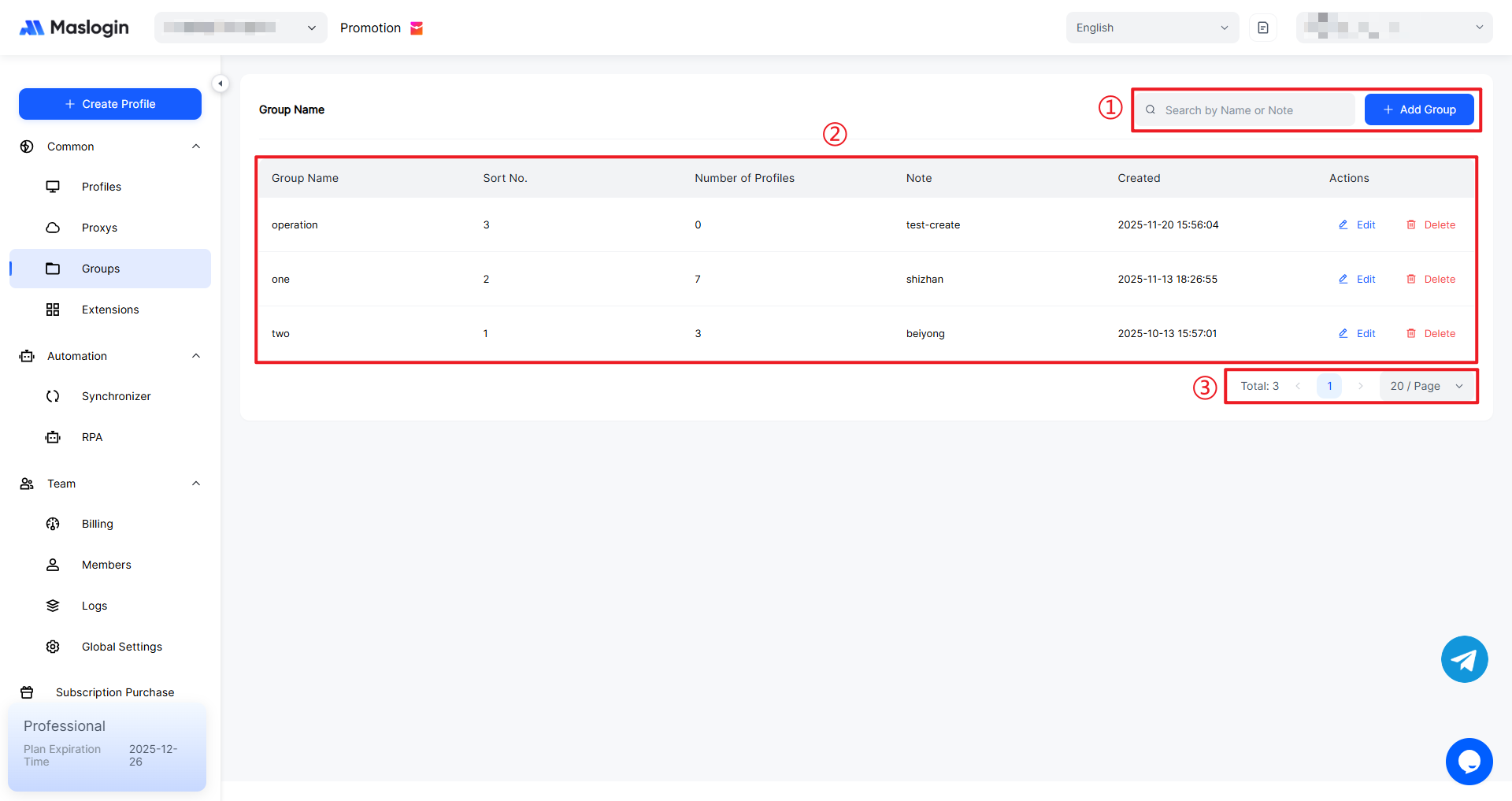
- ① Search & add groups: Quickly search existing groups by Name/Note. The "Add Group" button on the right is used to create a new profile group and enter details such as the sort order.
- ② Group list area: Displays all groups with their name, sort order, profile count, notes, and creation time. It also supports editing or deleting a single group for centralized management.
- ③ Pagination & statistics: Shows the total number of groups and the current page. You can change the number of items per page and switch pages, which is helpful when you have many groups.
Group Management – Add a Group
Click 【Add Group】, enter 【Group Name】 and 【Sort No.】, then click 【OK】 to create the group.
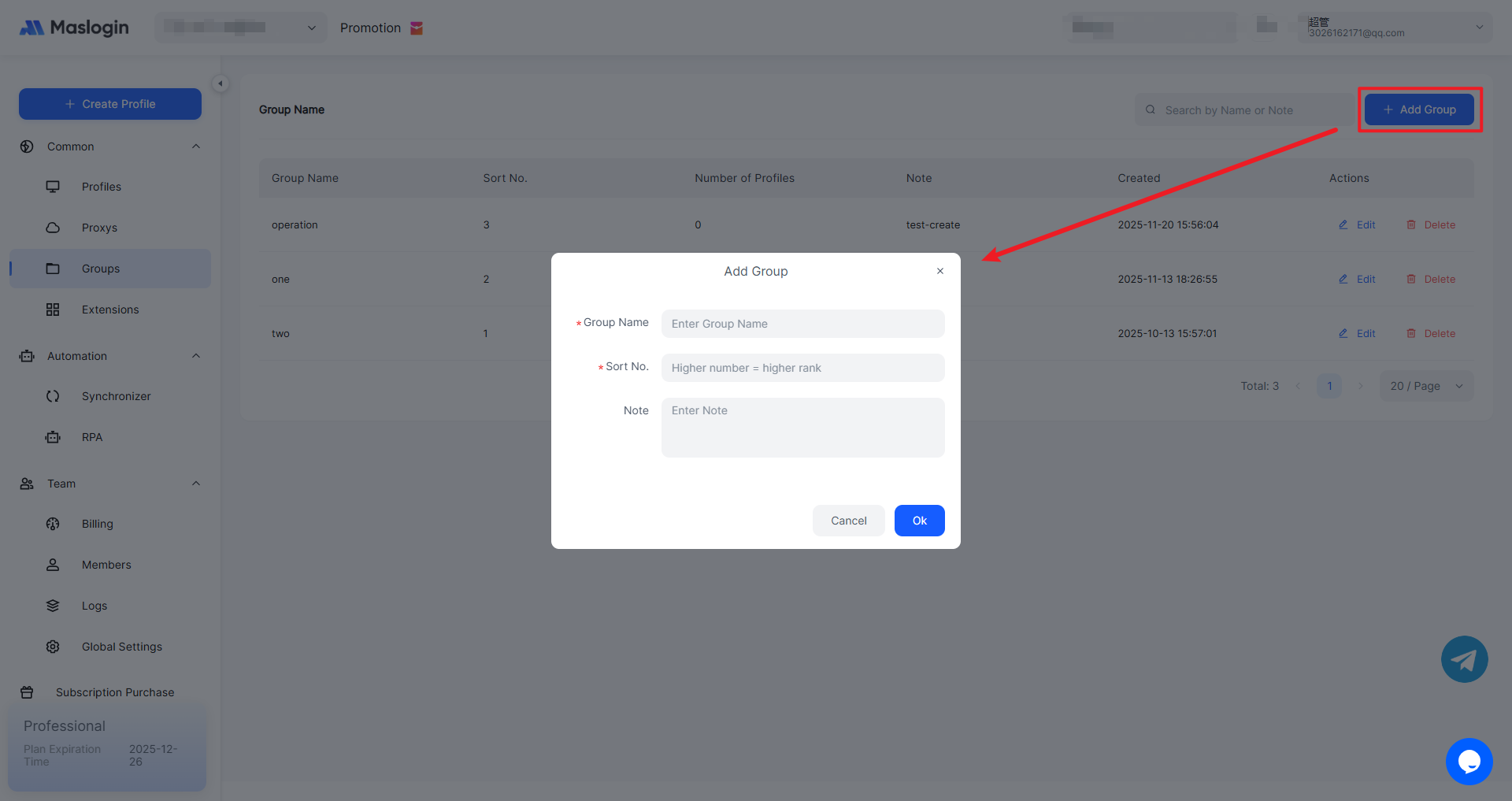
- Group Name: The unique identifier of a profile group. It is a text string and must not be duplicated.
- Sort Order: The larger the number, the higher the group ranks. You must enter an integer greater than 0.
- Note: Describe the group.
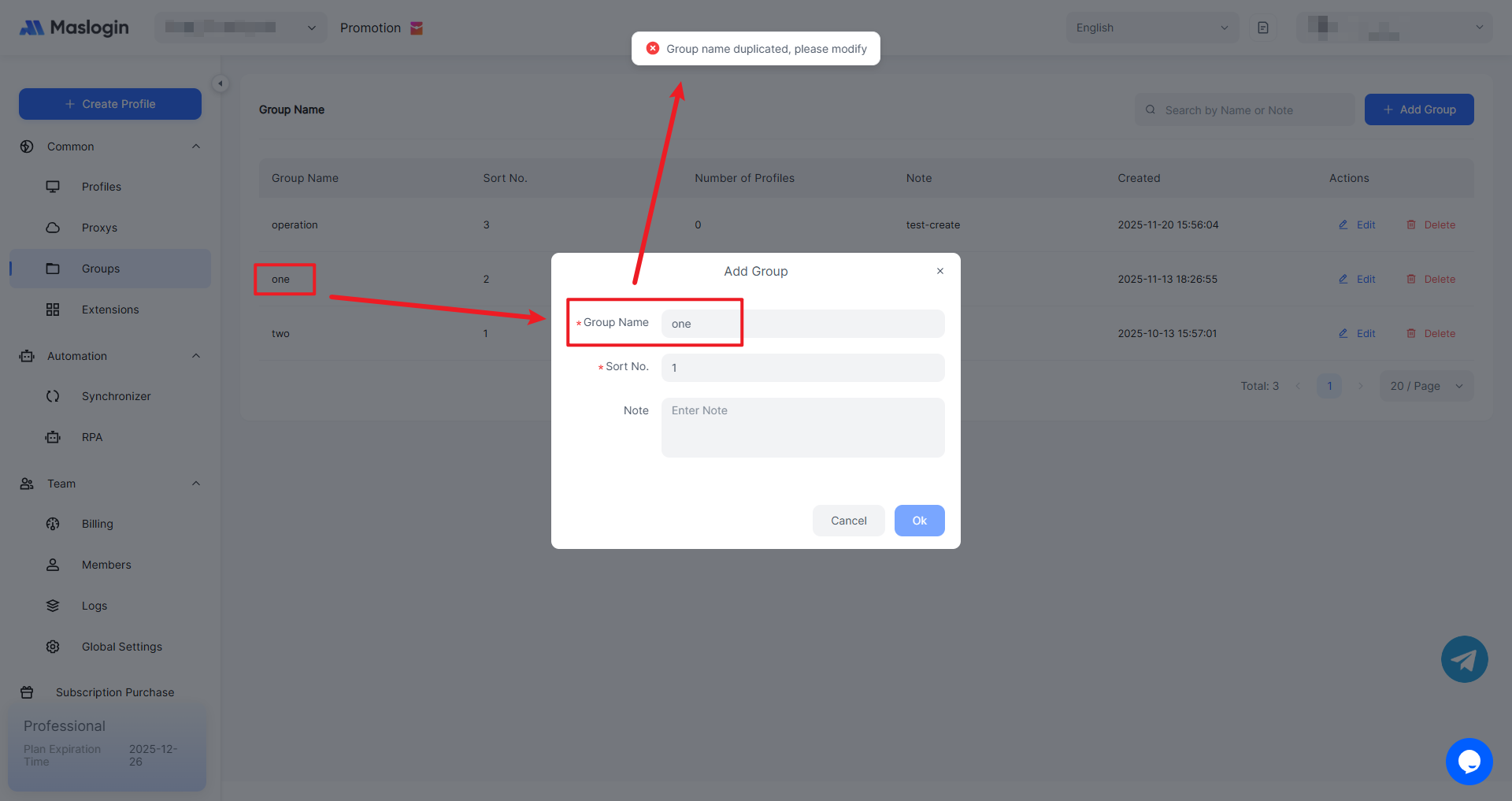
Group Names Must Be Unique
Duplicate group names will cause the creation to fail.
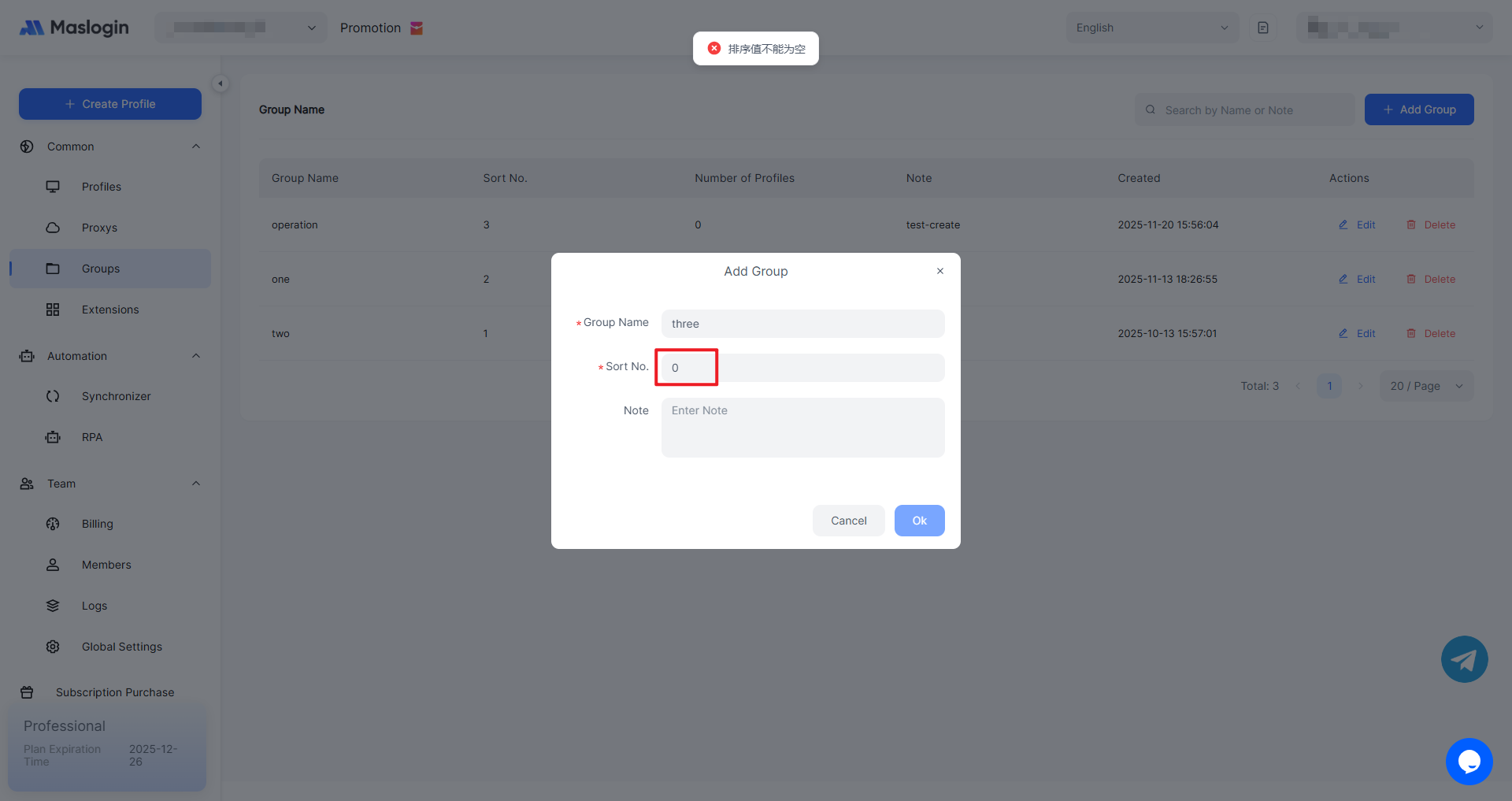
Sort Order Cannot Be Empty (0)
Sort order values can be duplicated, but they cannot be less than or equal to 0 and must be an integer.
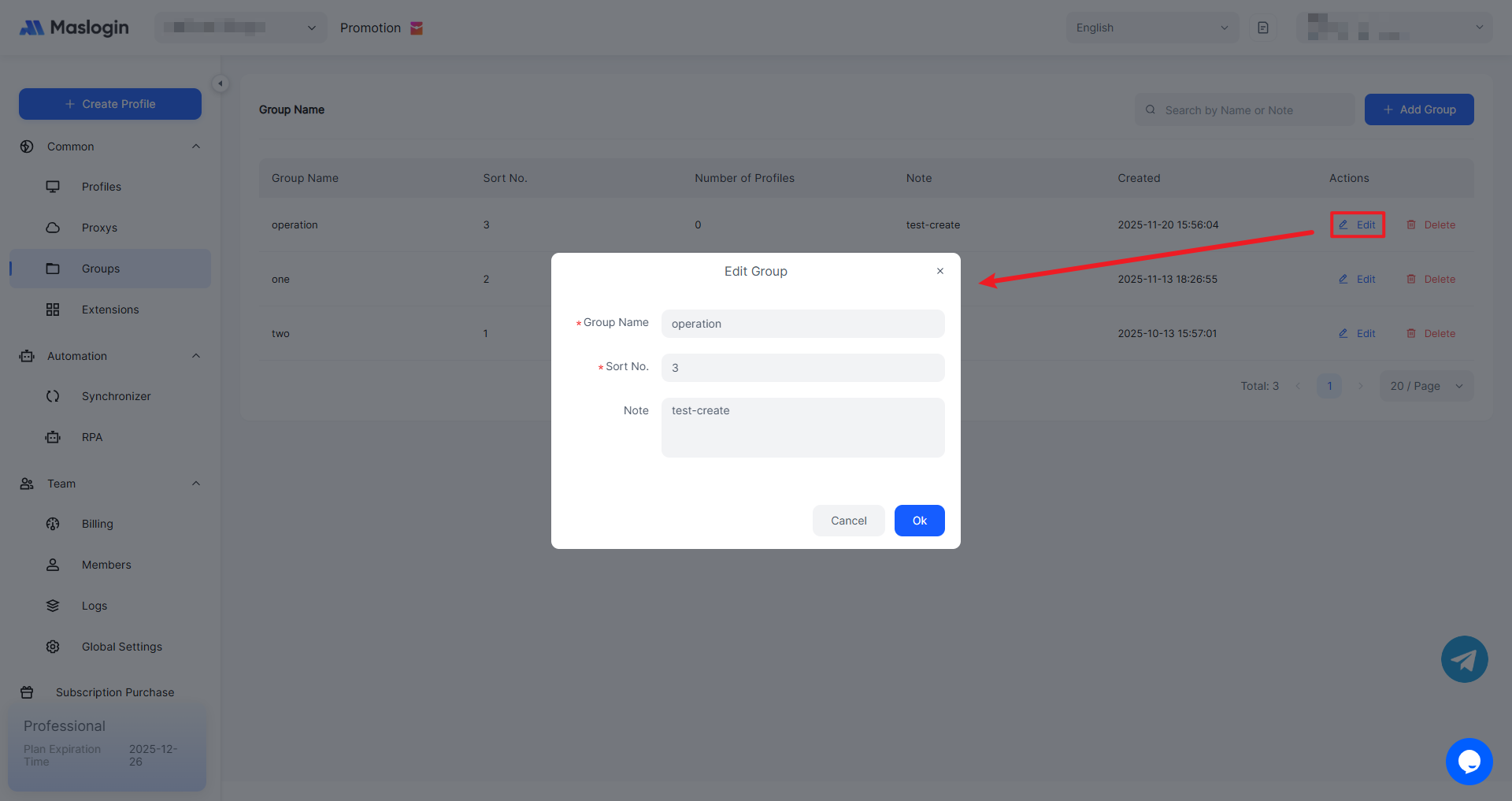
Group Management – Edit a Group
You can modify and edit information for an existing group.
Group Management – Delete a Group
To delete a group, click 【Delete】 in the top-right corner.
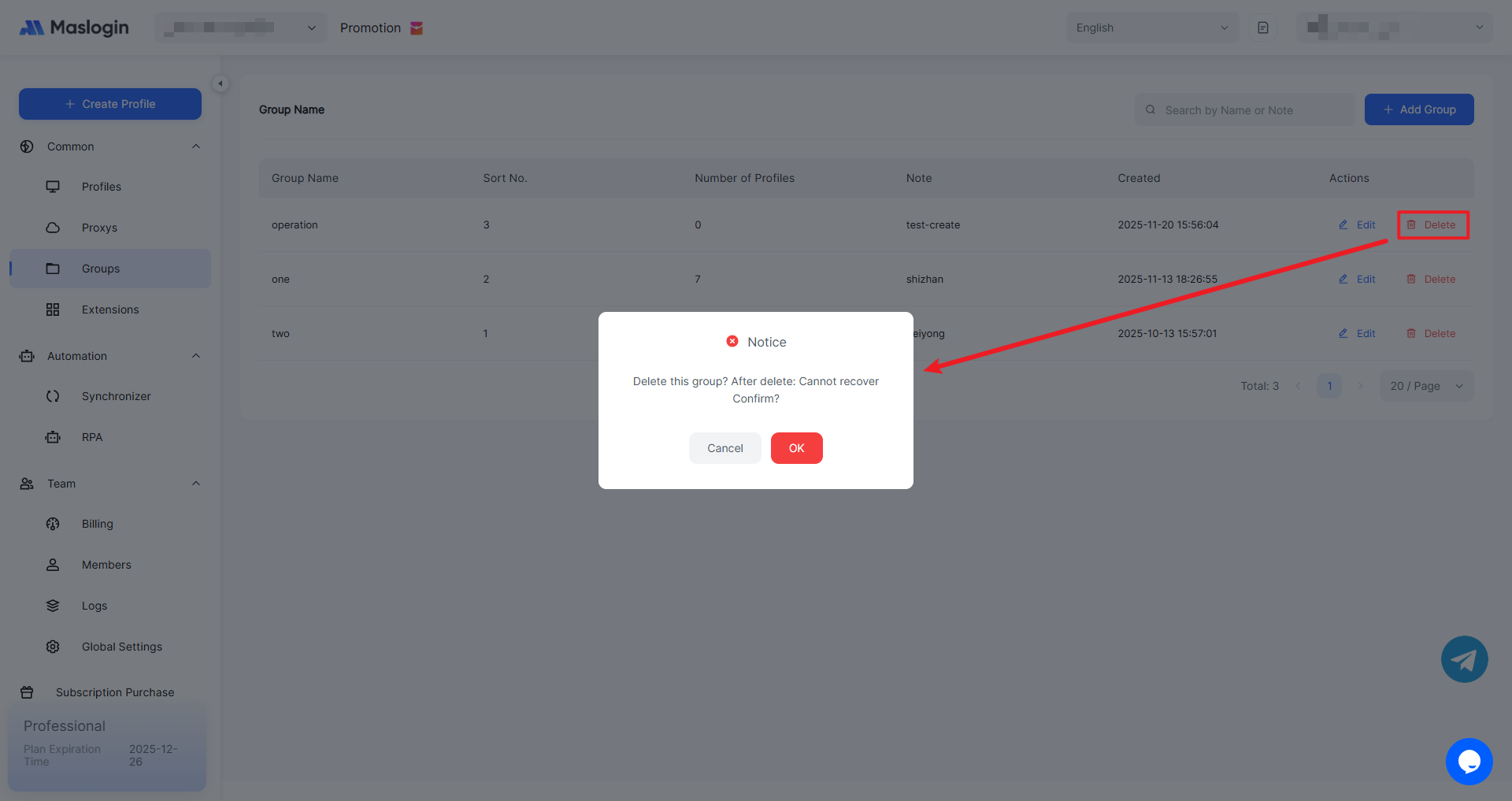
Note: Deleted groups cannot be restored and cannot be recovered from the Profile Management recycle bin. Please delete with caution. Profiles within the group are not affected and will still remain.