





by · MasLogin · November 25, 2025
In MasLogin’s Global Settings, you can centrally control whether browser local data (such as browsing history and cached files) is automatically cleared while using environments. Setting this properly helps you strike a balance between “staying logged in reliably” and “reducing local traces and freeing up space.”
Global Settings Home
Click 【Team】 - 【Global Settings】 on the left sidebar to enter the global configuration home.
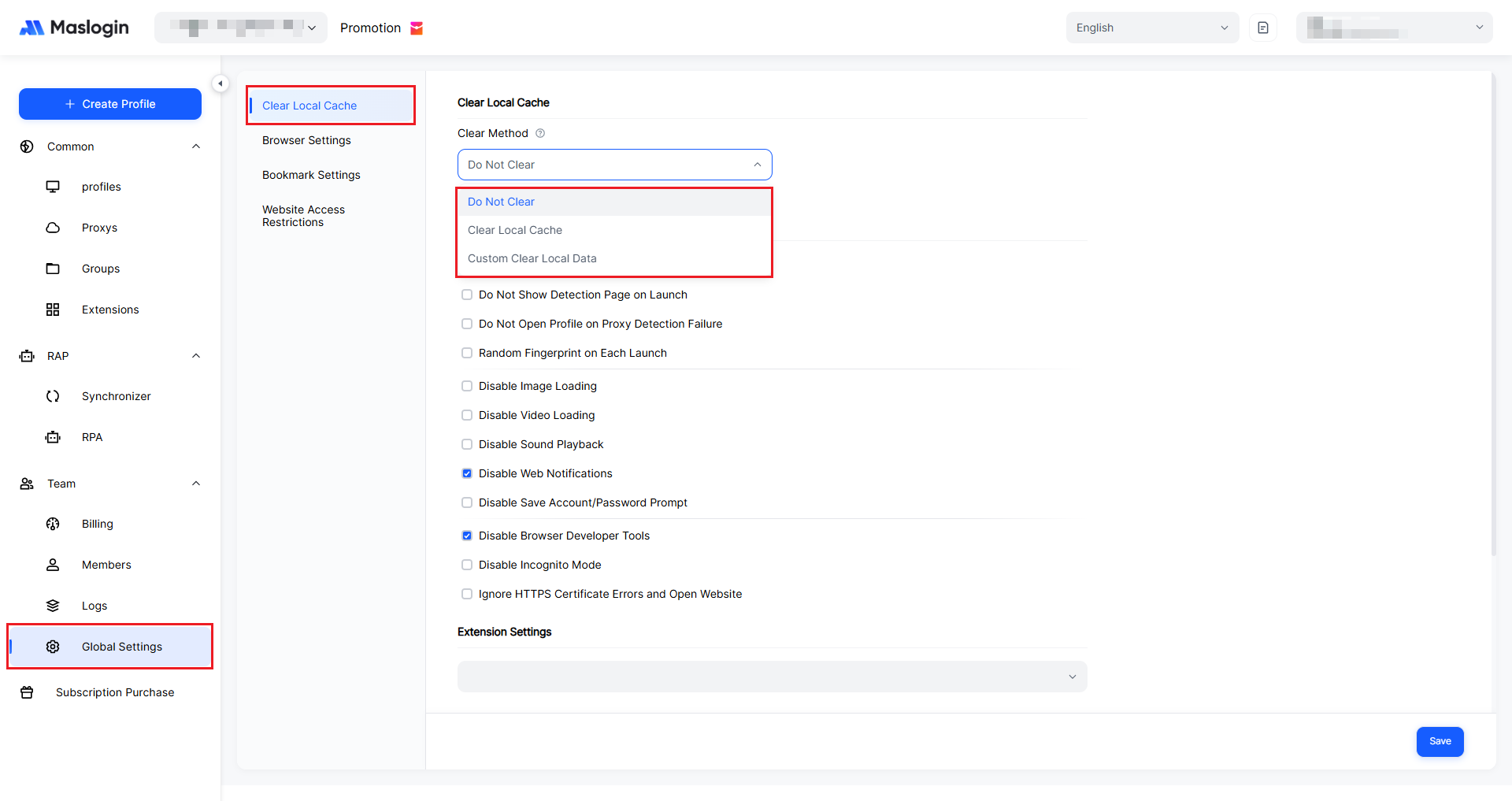
Local cache settings appear at the top. There are three options: Do not clear local cache, Clear local cache, and Custom clear local cache. Changes take effect only after you click 【Save】.
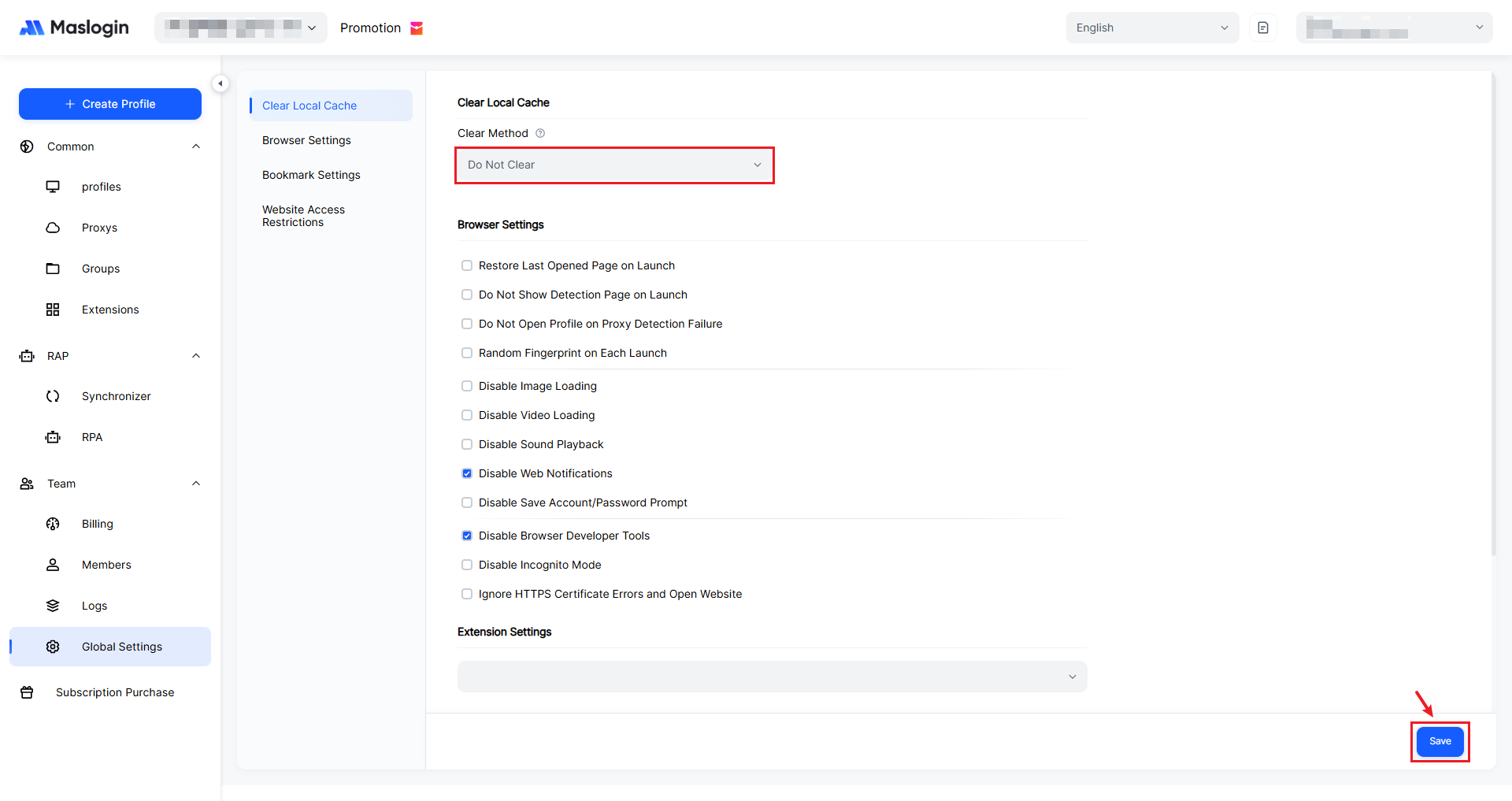
Do not clear local cache
If you choose not to clear local cache, local data will be retained in each browser environment. This is suitable for scenarios where you need to stay logged in long-term and reduce repeated verification.
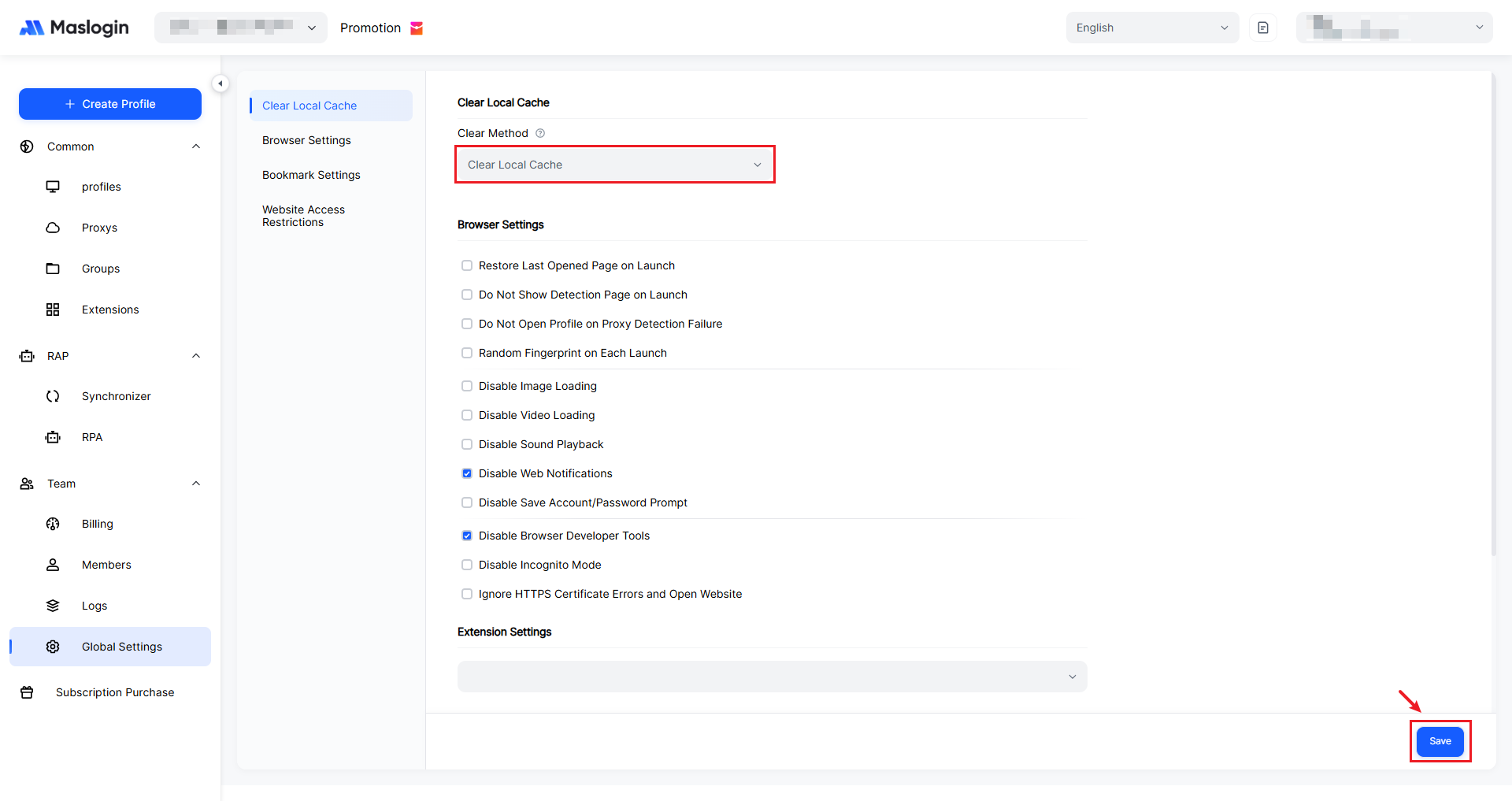
Clear local cache
If you choose to clear local cache, the system will centrally clear local cache data in the environment. Browsing history and cached files will be wiped based on the configured triggers, which is ideal for users who are more sensitive to privacy and storage space.
Custom clear local cache
With custom clearing, you can select exactly what to remove—such as Cookies, Local Storage, and IndexedDB—so only the checked items are cleared. This gives you more flexible control over privacy and usability.
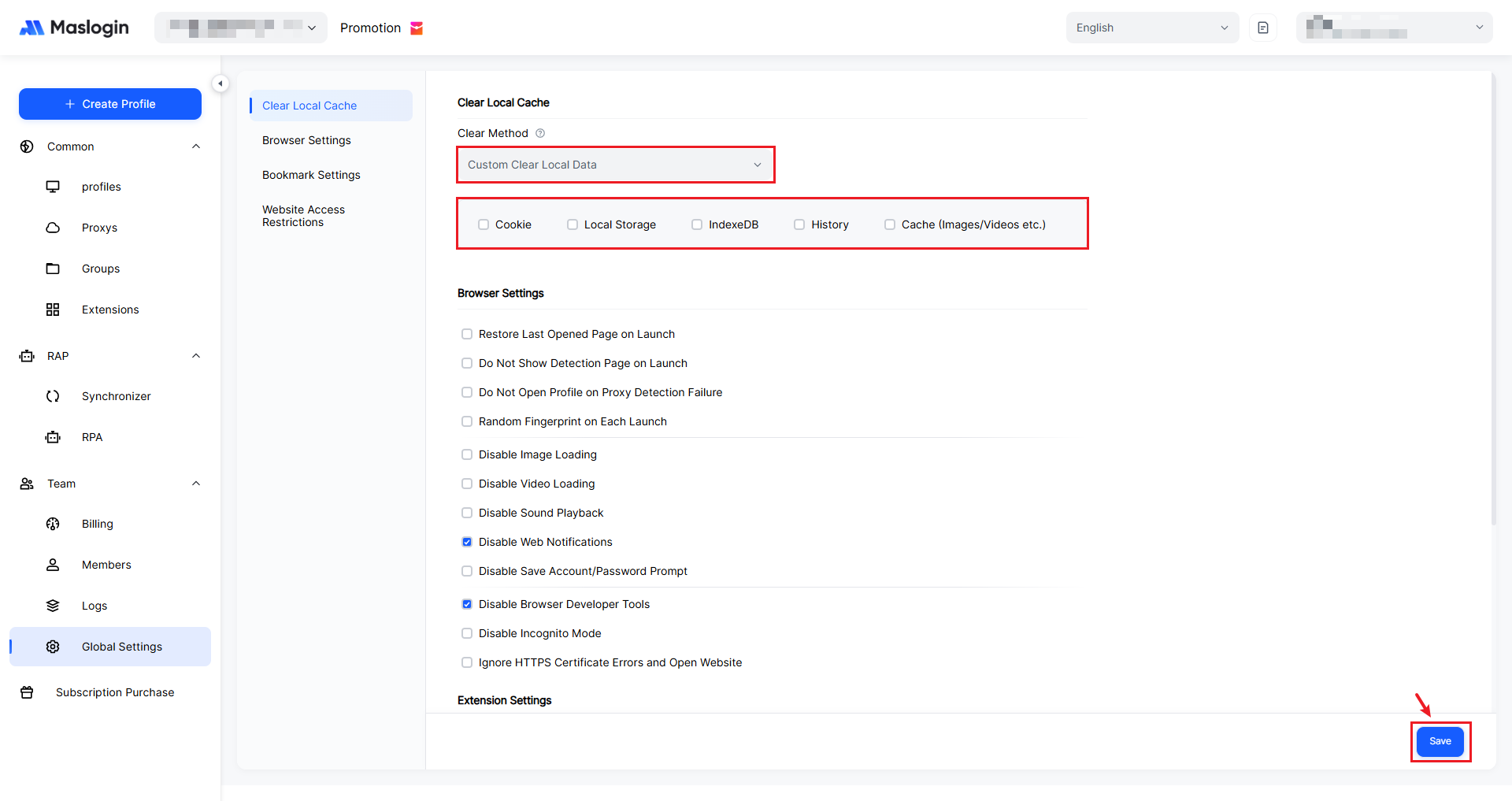
- Cookies: Clears cookie data such as login status and site preferences.
- Local Storage: Clears key-value data saved locally by web pages.
- IndexedDB: Clears offline database content stored by sites (such as cached business data).
- History: Deletes browsing history within the environment.
- Cached(images/videos, etc.): Clears cached images, videos, and static resources to free up space.