by · MasLogin · October 20, 2025
A proxy enhances privacy and security by hiding your IP address. It also lets you access geo-restricted content and simulate browsing from multiple locations for testing and multi-account operations. In Common > Proxy, you can add new proxies, view configured proxy details, and test whether configured proxies are available. After you finish configuring proxies in the proxy list, you can select those saved proxies when creating environments and choosing a proxy.
Proxy Management List: Quick Overview
Entry
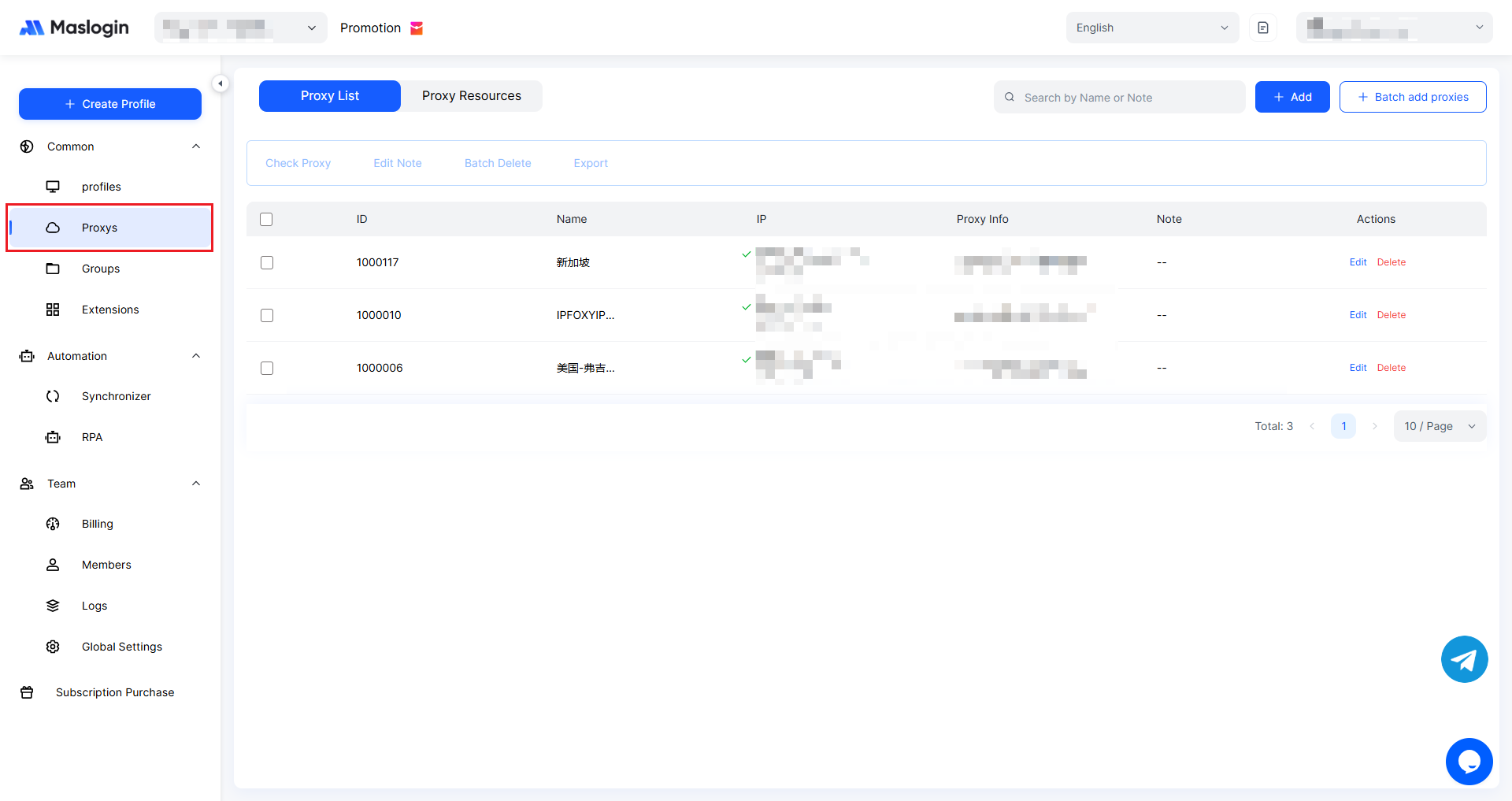
Open and sign in to MasLogin. In the left sidebar, find 【Proxy】.
Proxy filtering
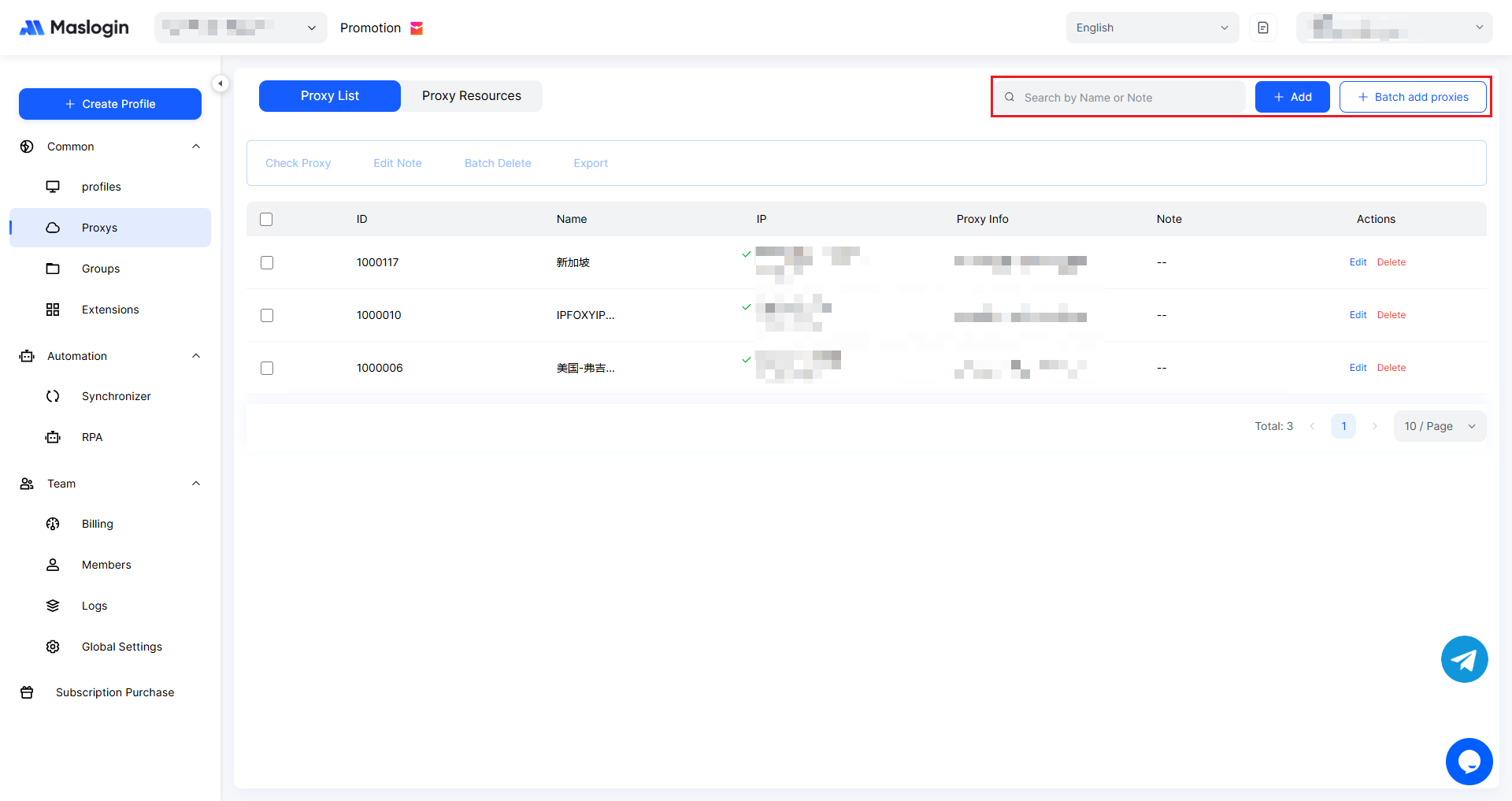
The “Search by Name or Note” input is used to locate specific proxies. The “+ Add” button lets you add a single proxy. The “+ Batck Add Proxies” button supports adding multiple proxies at once to improve efficiency.
Batch operations area
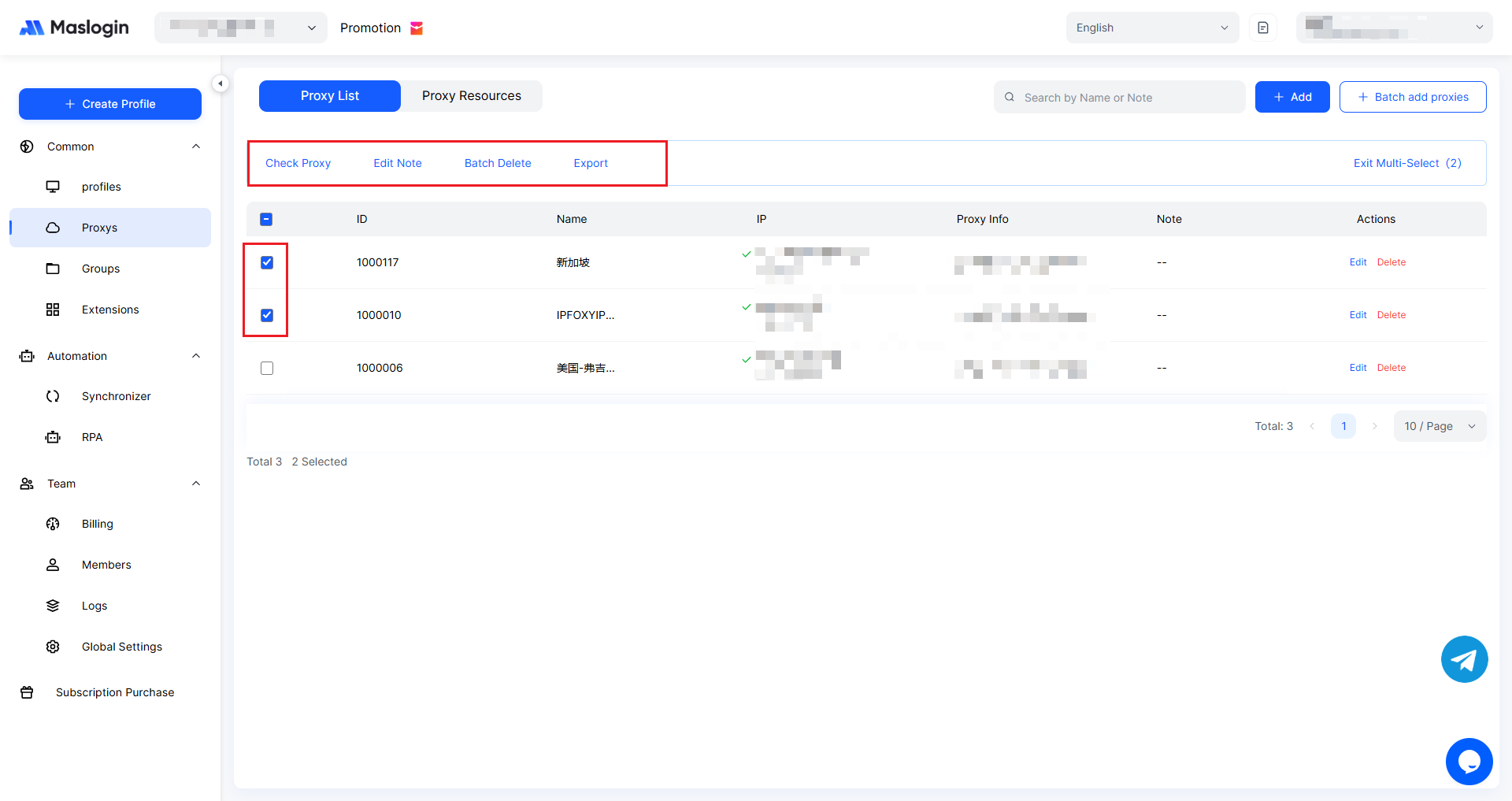
“Check Proxy” tests whether the proxy is available. “Edit Note” lets you update the proxy note. “Batch Delete” removes multiple proxies at once. “Export” exports the proxy list for backup or migration of proxy configurations.
Proxy list details area
This includes “ID” (unique proxy identifier), “Name” (proxy name), “IP” (the proxy’s exit IP address and region), “Proxy Info” (protocol, address, port, etc.), and “Note” (proxy notes). In the right-side “Actions” column, “Edit” updates the proxy details and “Delete” removes the proxy.
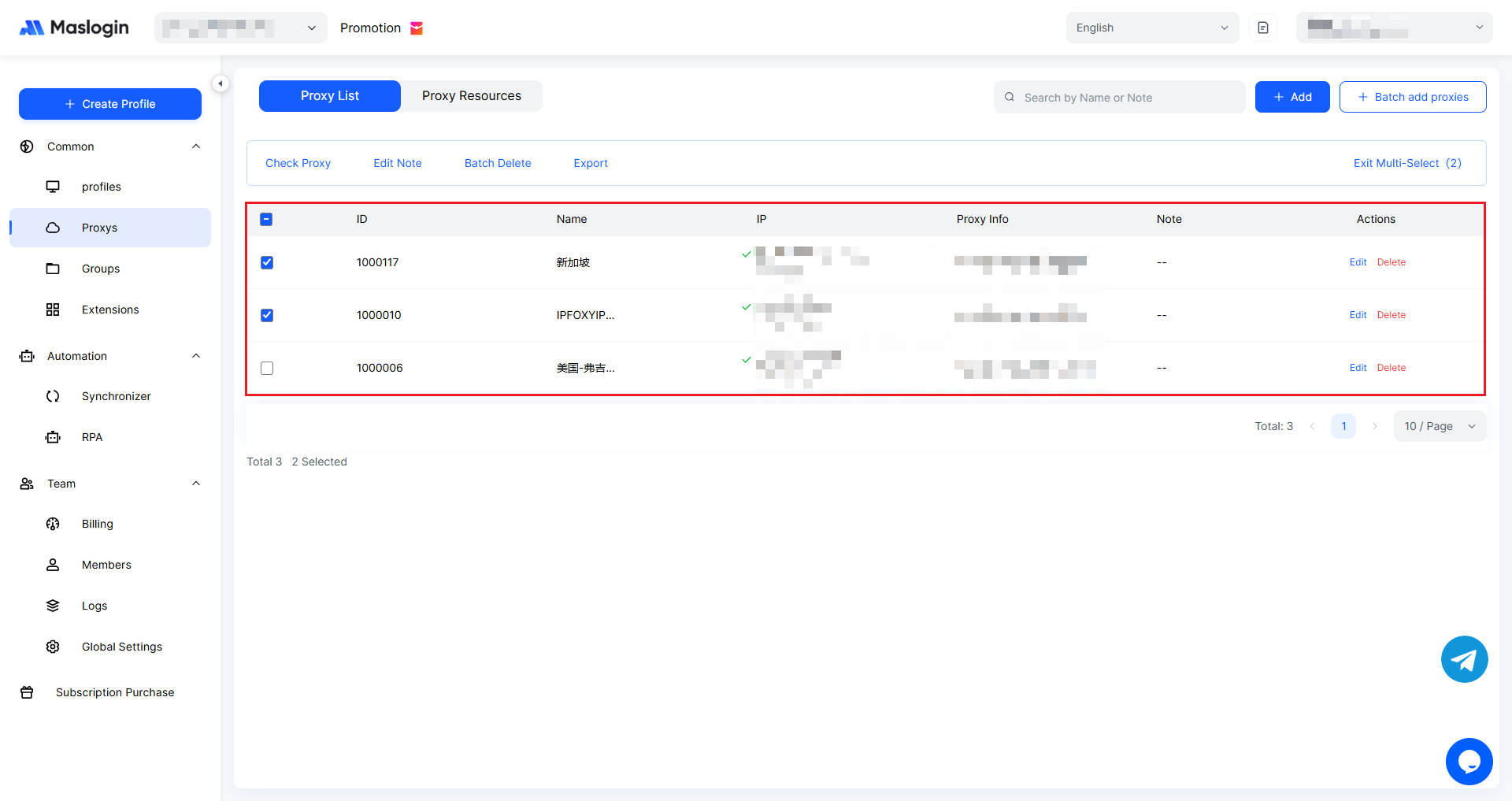
Statistics area
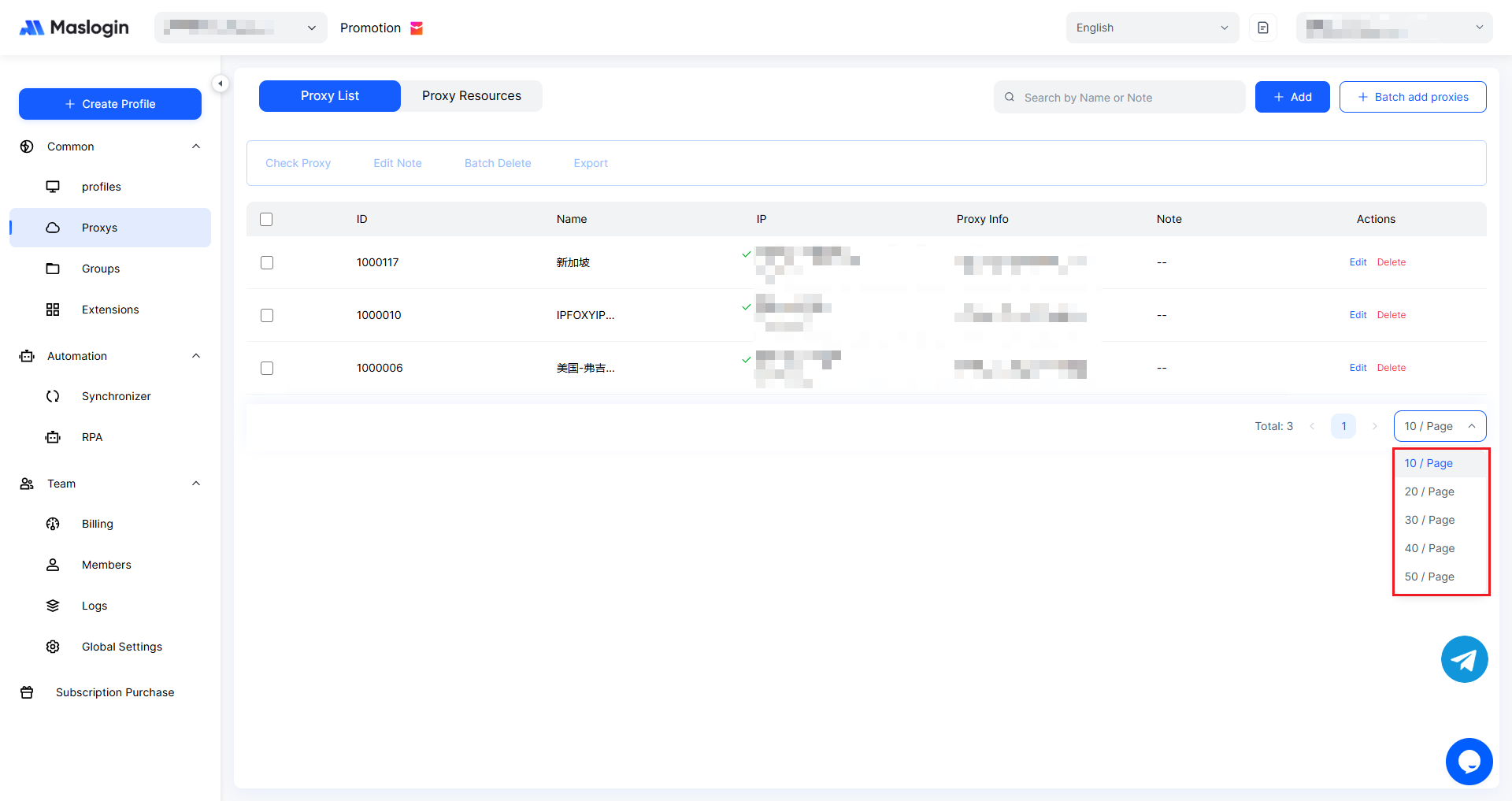
The bottom-right corner shows the total number of proxies, and you can also set how many proxies to display per page.
Proxy Resource Recommendations
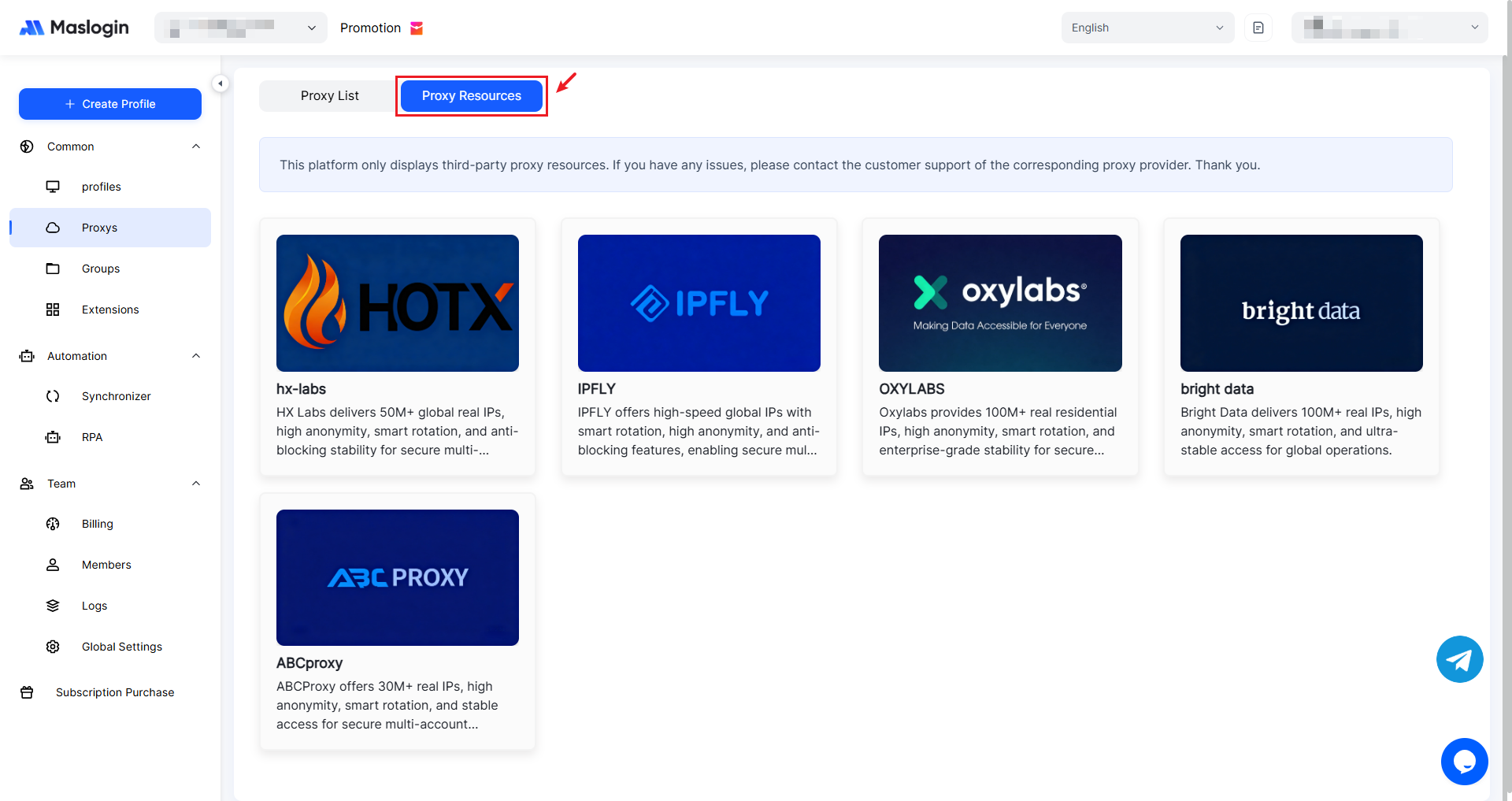
Switch to 【Proxy Resources】 to view introductions to third-party proxy providers and quick links to their official websites.