





by · MasLogin · October 14, 2025
MasLogin supports member management. In 【Member】, you can view your team members’ information and perform actions such as creating and editing team members.
Member Management Page
Click 【Member】 to enter the main page. The interface varies depending on your role in the team.
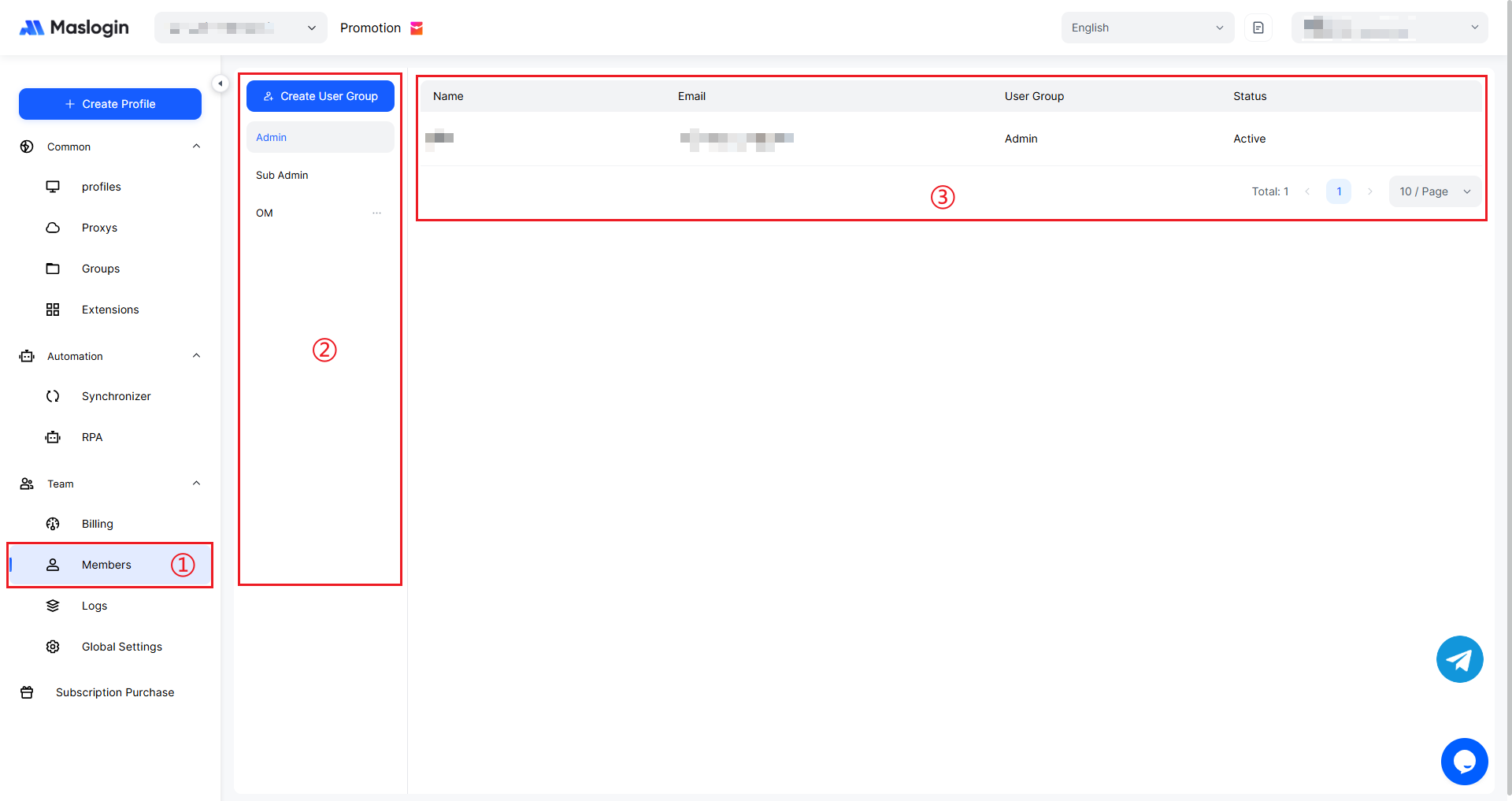
- ① Member Management entry: Under 【Team】 in the left sidebar, click 【Member】 to enter the core area for managing team members.
- ② User group list: Displays different user groups, generally including “Super Admin”, “Sub Admin”, and custom-created regular user groups. User groups categorize members. Different groups can be assigned different permissions, making it easier to manage and distribute permissions by role or function.
- ③ Member information display area: Shows key member information in a list, including “Name”, “Email”, “User Group”, and “Status”. Admins can quickly check member basics and permission ownership here.
Member Status
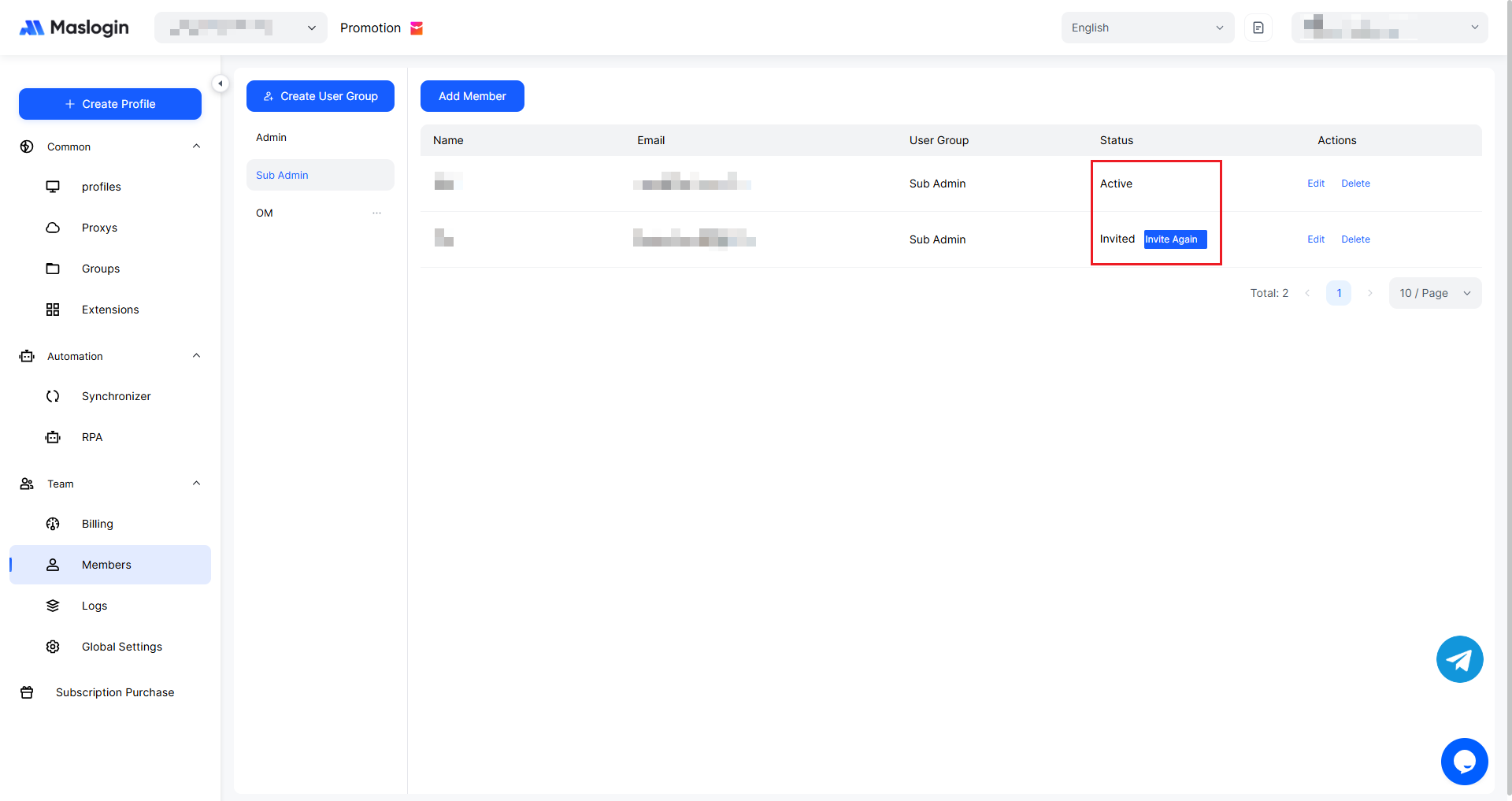
- Active: The member account is in a normal, usable state and can participate in team operations as usual.
- Invited: An invitation to join the team has been sent, but the member has not accepted it yet and cannot use team resources and features for now. The page also provides a “Invite Again” button to resend the invitation and ensure the member receives it.
【Feature Permissions】 settings for regular user groups
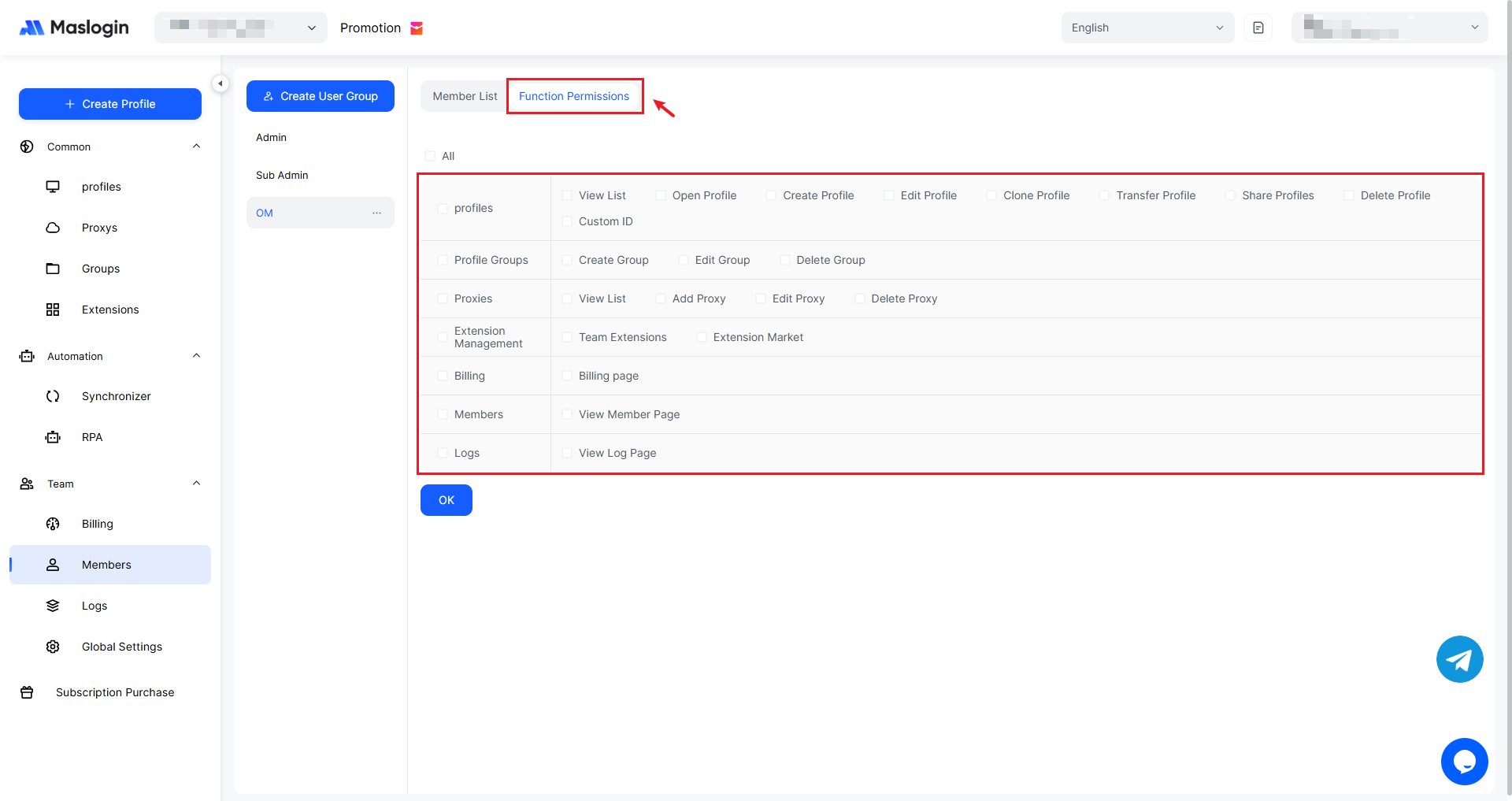
- Profiles: The core permission group, including permissions such as “View List” (view Profile list), “Open Profile” (launch a specified Profile), “Create Profile” (create a new fingerprint browser Profile), “Edit Profile” (modify profile configuration), “Clone Profile” (duplicate an existing Profile), “Transfer Profile” (transfer Profile ownership), “Share Profile” (share Profiles with other members), “Delete Profile” (delete Profiles), and “Custom ID” (set a custom identifier for a Profile). It covers the full workflow from creation to management.
- Profile Groups: Includes “Create Group”, “Edit Group”, and “Delete Group” permissions, used to manage environment grouping and organization for large numbers of environments.
- Proxies: Includes “View List”, “Add Proxy”, “Edit Proxy”, and “Delete Proxy” permissions, used to manage proxy configurations for network access needs.
- Extension Management: Includes “Team Extensions” and “Extension Market” permissions, related to managing browser extensions such as installing and managing team extensions.
- Billing: Permission to view billing-related information during the use of the fingerprint browser.
- Member: Permission to view team member information.
- Logs: Permission to view operation records of team members within the system.