by · MasLogin · October 20, 2025
The Window Sync feature lets selected windows follow the master window and perform the same actions—such as mouse clicks, keyboard input, and page scrolling—at the same time. It helps you complete repetitive tasks in one go, saving time, reducing operational complexity, and ensuring consistent and accurate execution.
Window Sync List
In the left sidebar, go to 【Automation】 and click 【Synchronizer】 to enter the page.
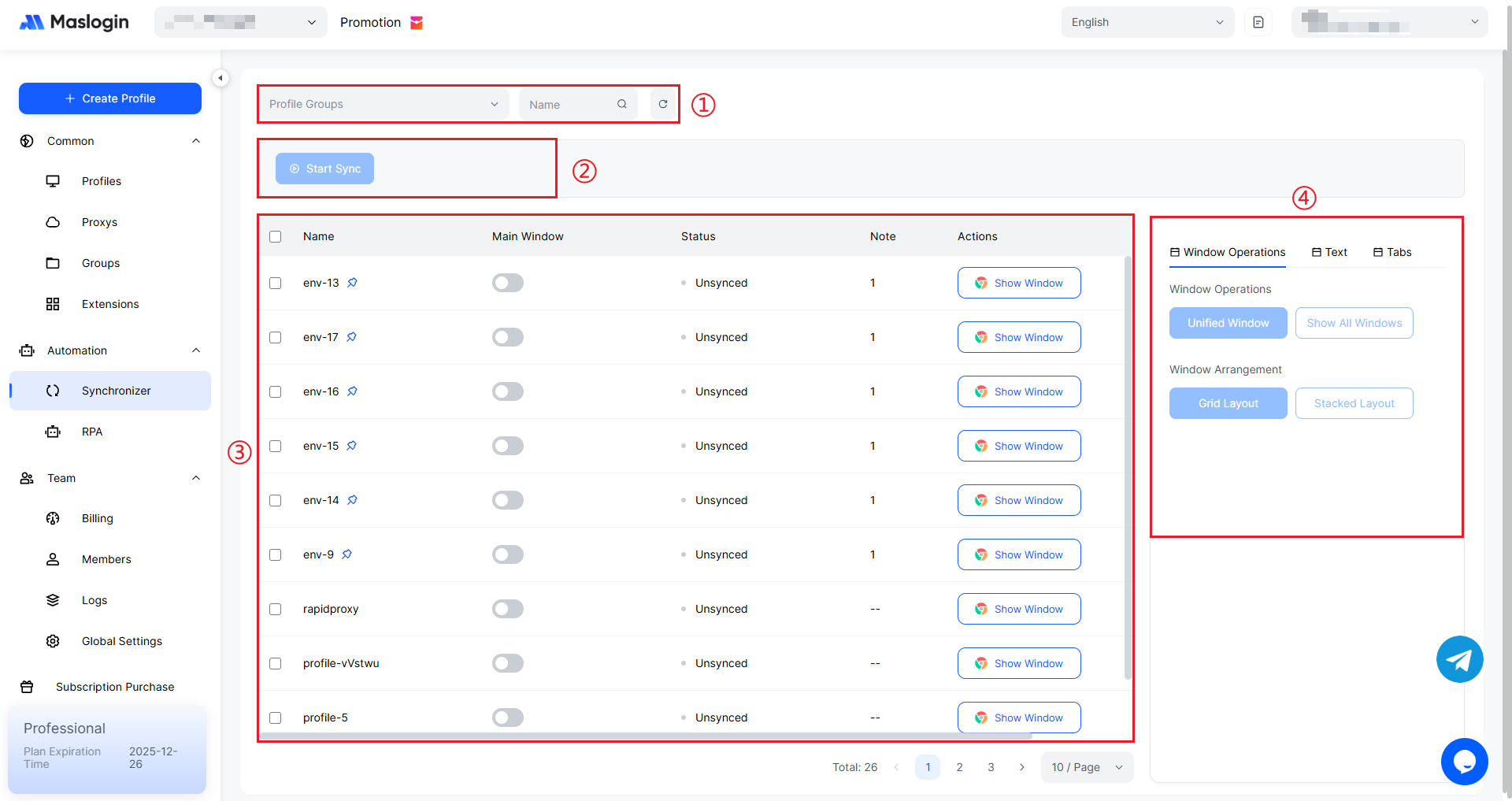
- ① Profile filter: Use “Profile Group” filters and the “Name” search to quickly locate the windows you need.
- ② Start Sync: Click to start synchronization for the selected windows.
- ③ Window list: Displays each window’s name, status, master window, and more. You can also perform display-related actions for windows.
- ④ Window operations: Configure window layout, enable simulated synchronized input, and perform tab actions.
How to Use Window Sync
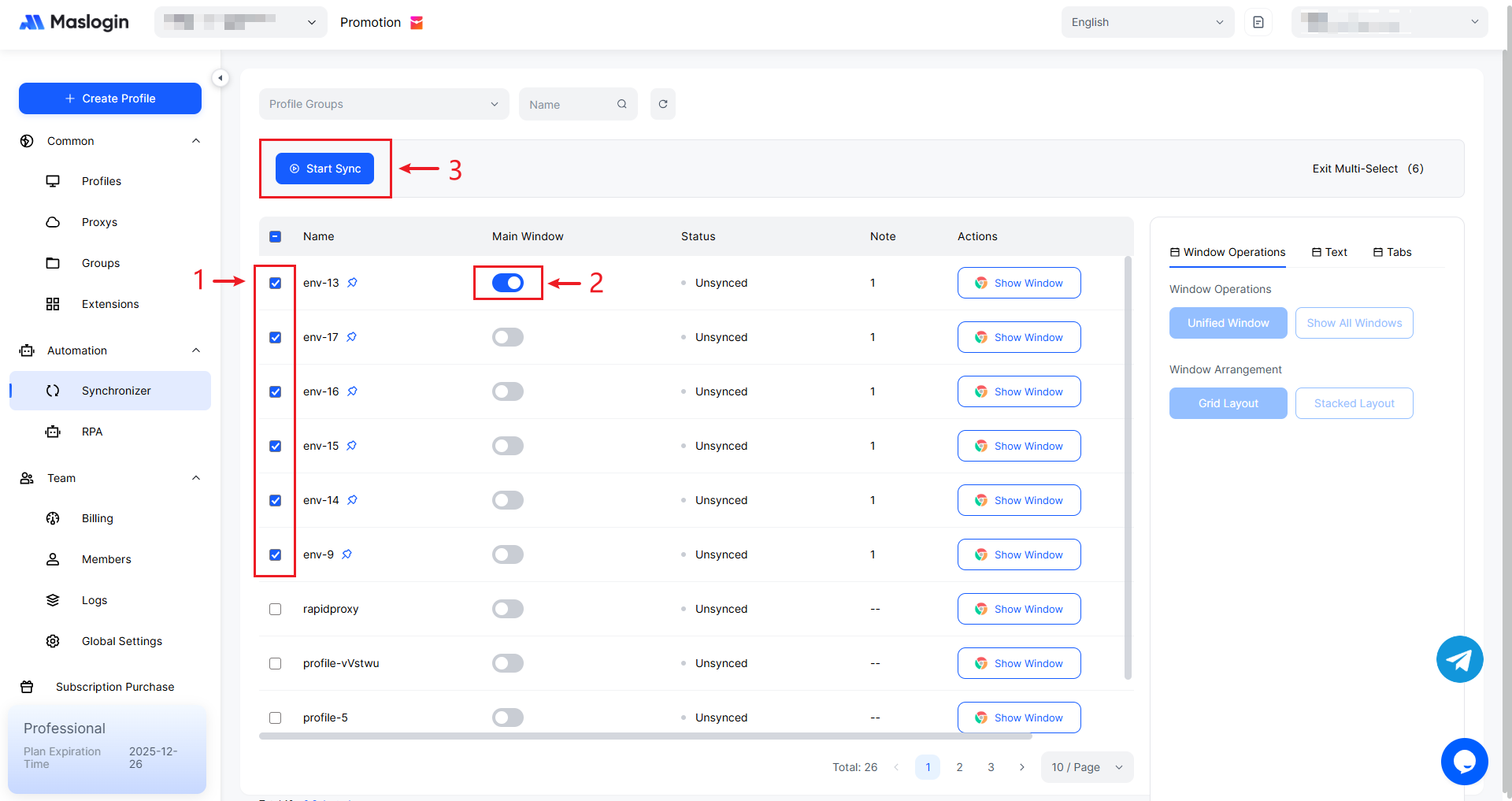
1. Select the windows to sync
Select two or more windows that you want to synchronize.
2. Choose a master window
Pick any window as the master window. After that, actions performed in this window will control the remaining windows.
3. Click Start Sync
Click the 【Start Sync】 button to open the selected windows.
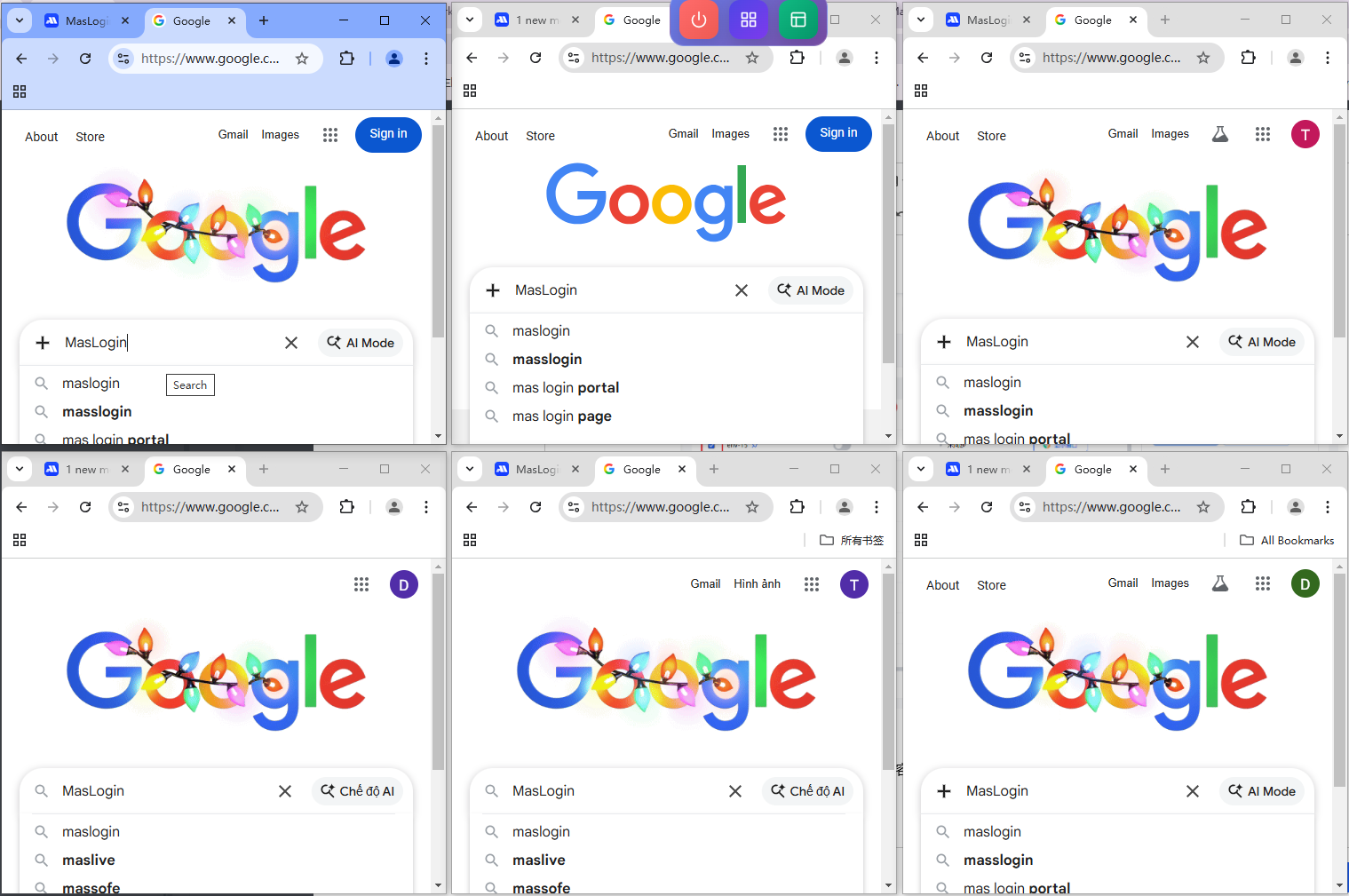
4. Window Sync effect
Type in the master window, and the other windows will type the same content simultaneously.
Sync Feature Notes
1. Feature buttons

From left to right, the buttons are:
- One-click to stop syncing and exit the windows
- Show all windows
- Switch the window layout
2. Layout styles
By default, a grid layout is used, and the master window is highlighted with a blue theme.
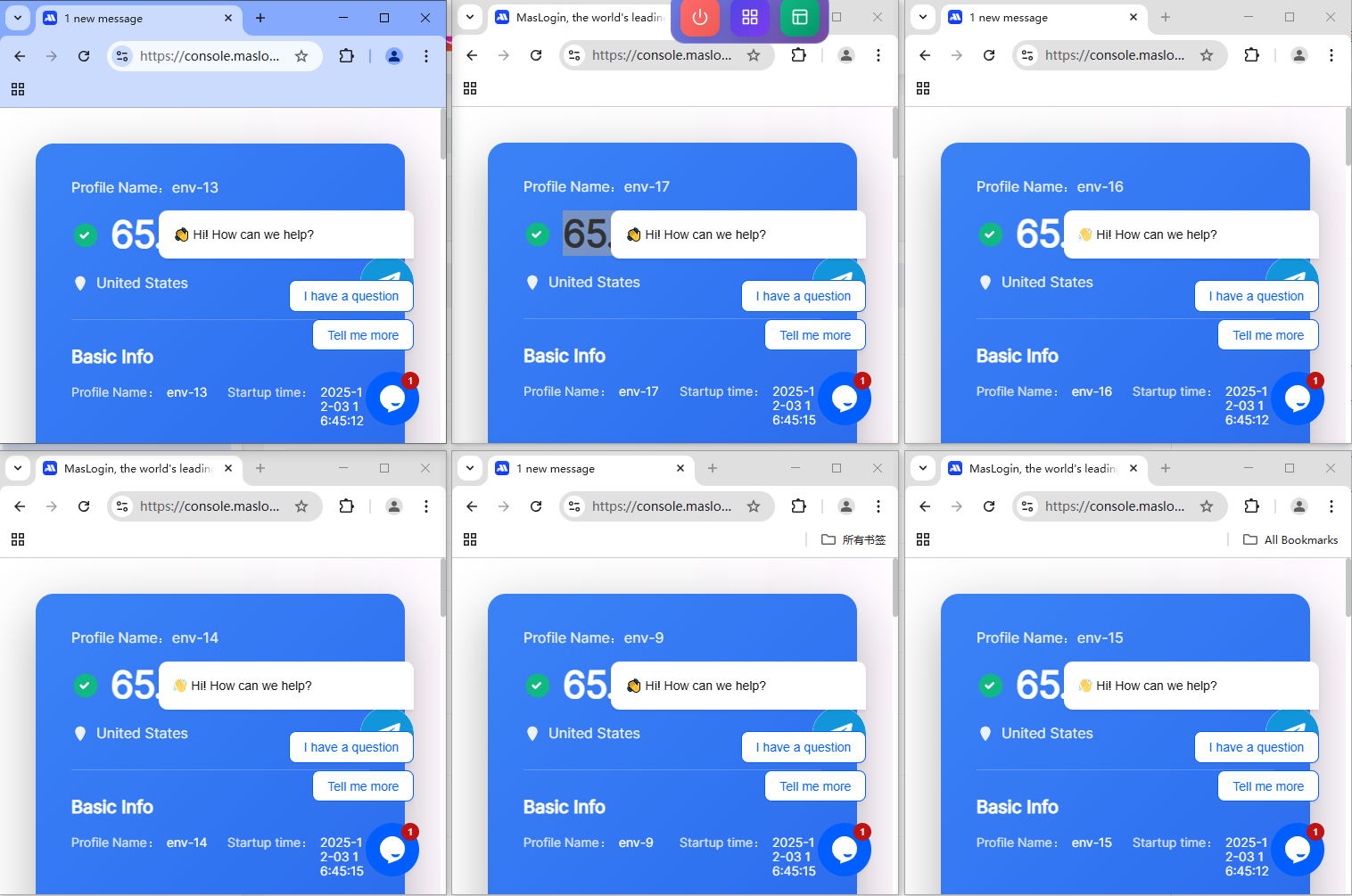
You can switch to a custom layout, where the master window stays on top for easier synchronized operation.
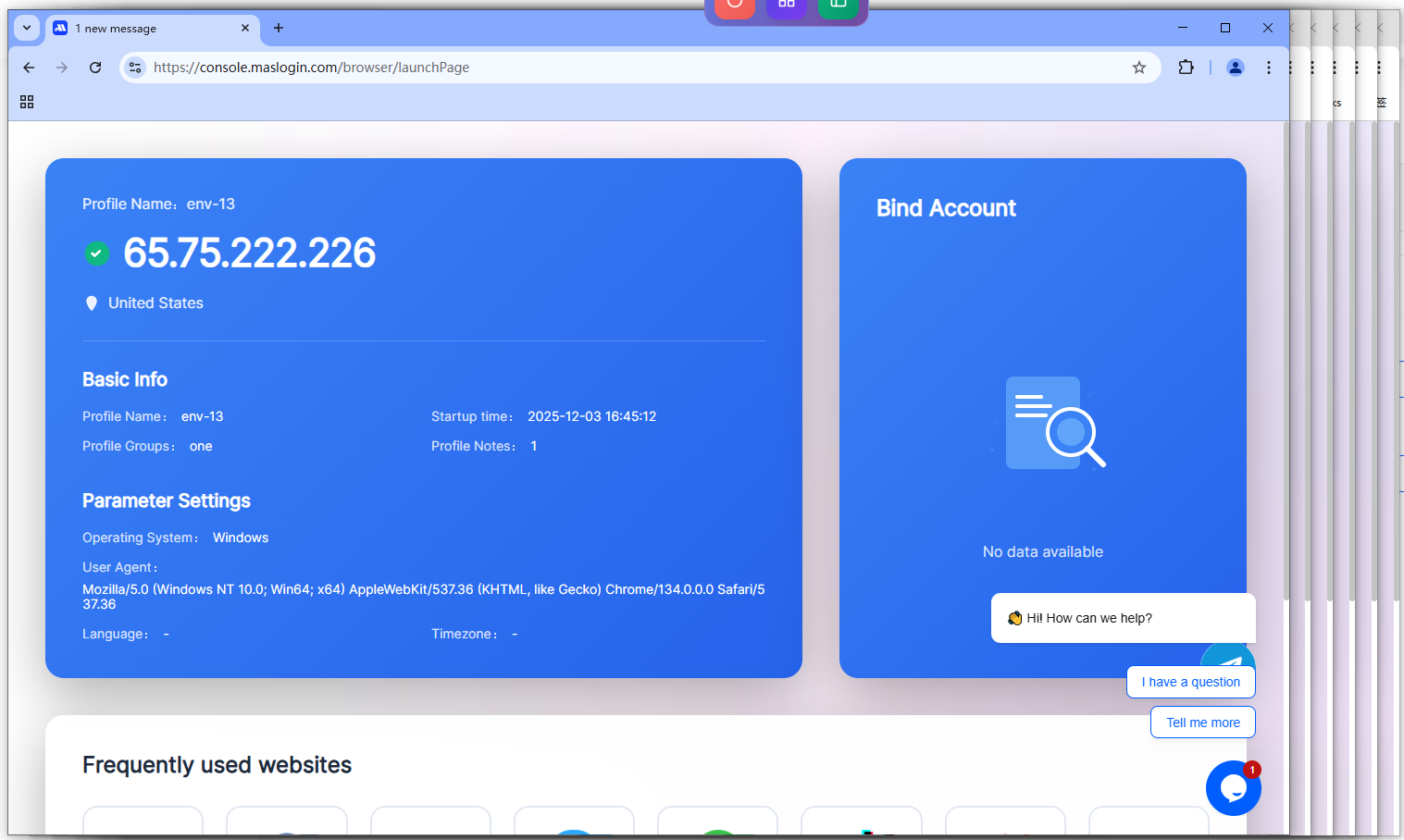
3. Simulated text sending
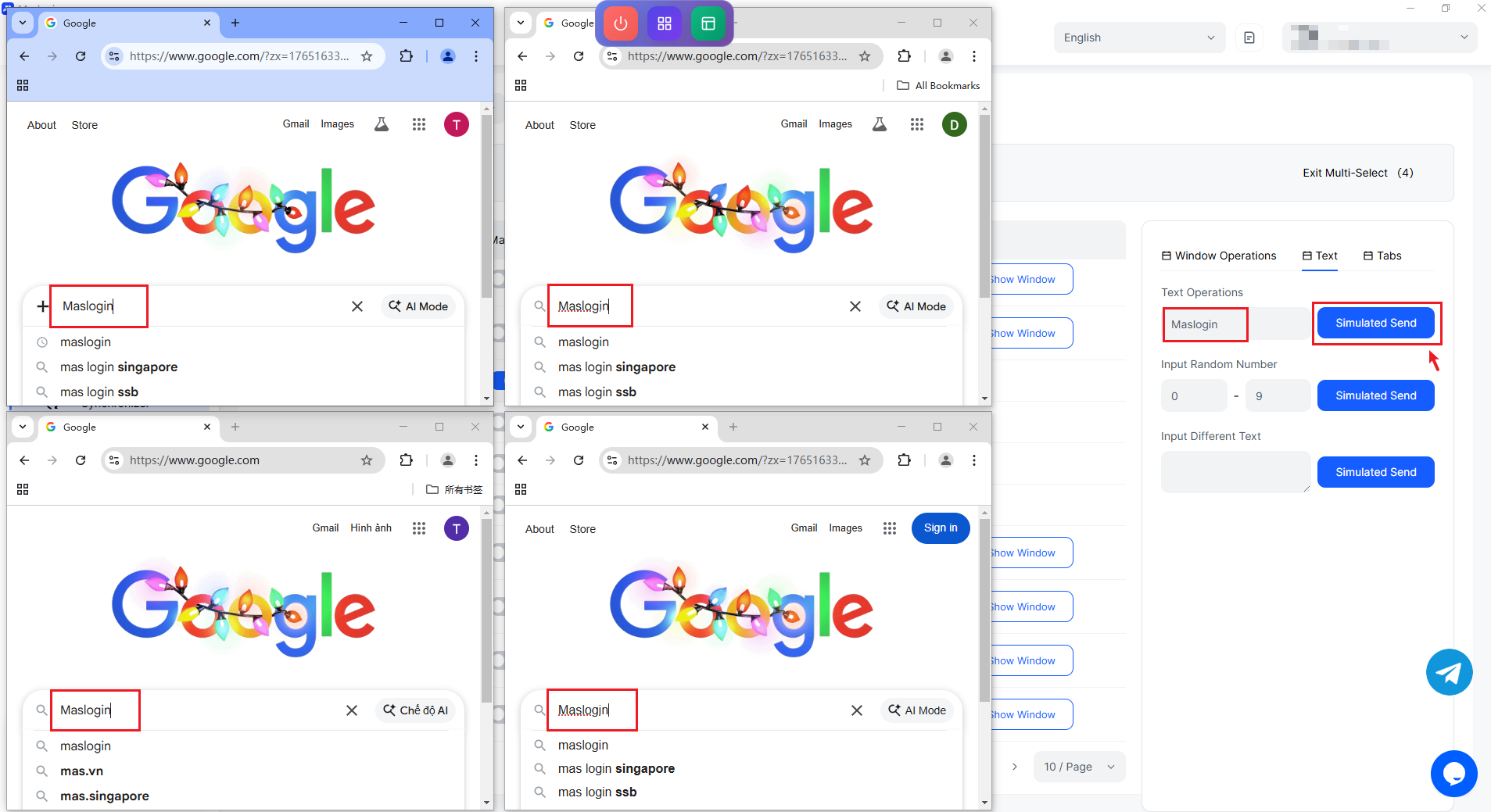
Under 【Text】 in the client, enter the text you want to send. Click 【Simulated Send】 to sync it to all open synced windows.
4. Simulated sync to open a link
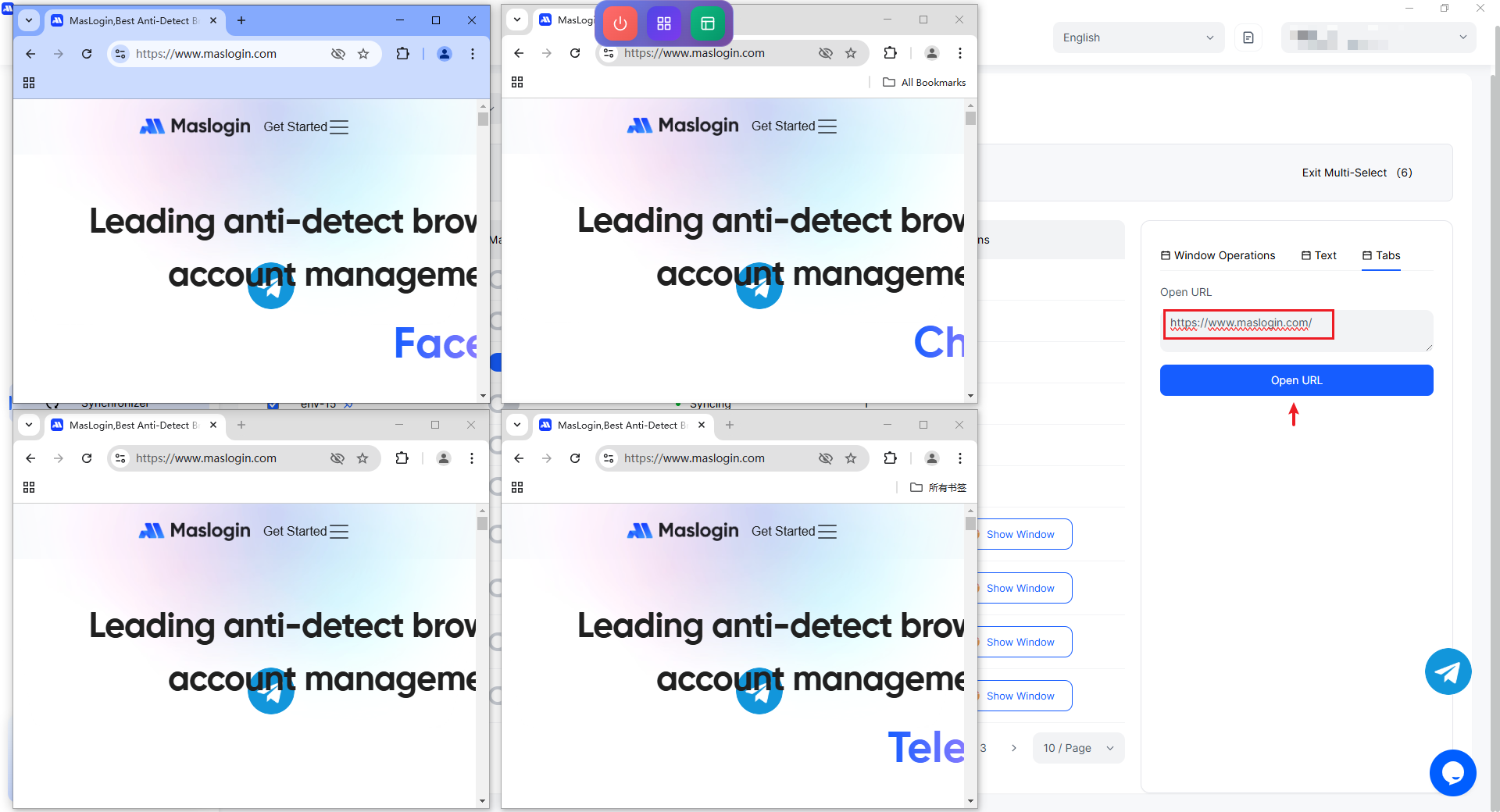
Under 【Tabs】 in the client, enter the full URL and click 【Open URL】. You will see all synced windows open the same tab.