Intro — A verified LinkedIn profile makes you easier to trust, hire, and message. This guide shows two official ways to verify (work-email and identity) and gives field-tested fixes for the errors people hit most—name mismatches, selfie/ID scans failing, NFC passport issues, “already submitted” loops, missing buttons, and more. All steps work on iOS and Android.
Why Verify Your LinkedIn Account?
- Instant credibility: A visible check helps hiring teams, partners, and clients trust you faster.
- Better reach: Verified accounts often get more visibility across feeds and search.
- Lower friction: Verification reduces skepticism around outreach and content.
Method 1 — Verify Your Work Email (1–2 minutes)
- Open the LinkedIn app on your phone, go to your profile.
- Tap the three dots → About this profile → Verify.
- Choose Work email, enter your business email, then input the code sent to that inbox.
- Done—your work email is verified.
Method 2 — Verify Your Identity With CLEAR (US/CA/MX, About 4 minutes)
- On your profile, tap Verify now (or Other resources → About this profile → Verify now).
- Select Verify your identity with CLEAR.
- Scan the QR code, which opens the LinkedIn app to start CLEAR.
- Tap Verify with CLEAR → add phone number (enter the code) → add email → accept terms.
- Take a selfie, then choose an ID (government ID card or passport).
- Submit and Send to LinkedIn. You should see “Verification successfully added to your profile.”
Method 3 — Verify Your Identity With Persona (60+ countries, passport/NFC)
- Tap Verify your identity, accept Persona’s terms.
- Take a clear photo of your government-issued ID (usually your passport).
- Scan the RFID/NFC chip in your passport (look for the chip symbol on the cover; use your phone’s NFC).
- Take a selfie and confirm Share.
- You should see confirmation that your identity is verified.
Make Your Verification Work Harder (3 quick wins)
- Optimize your profile: Strong headline, clear About, focused Experience, relevant Skills—treat it like a landing page for your career/business.
- Be visibly active: Publish helpful posts, comment thoughtfully, answer questions—credibility compounds with consistency.
- Search-friendly content: Identify ~10 relevant, non-spammy keywords for your niche and use them naturally in your headline, About, posts, and alt text—avoid keyword stuffing.
Troubleshooting: Common Verification Issues (and Fixes)
1) App won’t start/finish verification
Why it happens — Outdated app build, corrupted cache, or flaky network.
How to fix
- Stabilize your connection: switch to strong Wi-Fi or reliable cellular data and retry from About this profile → Verify.
- Update the app: install the latest LinkedIn version from the App Store or Google Play.
- Clear cache (Android): long-press LinkedIn → App info → Storage → Clear cache, then relaunch.
- Reinstall clean: uninstall, reboot the phone, reinstall LinkedIn, and start the flow again.
2) Persona error: “You’ve already submitted a request. Try again later.”
Why it happens — A previous attempt is still processing or you hit a temporary rate limit.
How to fix
- Wait, then restart from the app: close all browser tabs, reopen the LinkedIn app, and begin from About this profile → Verify (don’t resume an old deep link).
- Escalate with context: open a ticket via the LinkedIn Help Center and attach a screenshot of the error; include the step where it appears. You can also DM @LinkedInHelp with your case ID for quicker routing.
3) NFC/passport scan won’t complete (Persona)
Why it happens — Phone NFC is off, the e-passport chip isn’t detected, or the reader isn’t aligned.
How to fix
- Confirm your passport is e-enabled (look for the chip symbol on the cover).
- Enable NFC in system settings and remove thick/magnetic cases.
- Find the sweet spot: slowly move the top/back of your phone across the cover until vibration/recognition, then hold still for 5–10 seconds.
- If your device struggles with NFC, borrow another phone and re-run the Persona step from the LinkedIn app. For requirements, see Persona Help.
4) Name mismatch or document problems
Why it happens — Your LinkedIn profile name doesn’t exactly match your legal ID, or your document is expired.
How to fix
- Match names exactly: temporarily edit your LinkedIn profile name (order, accents, hyphens, middle names) to mirror your ID, verify, then change it back.
- Use a valid document: submit an unexpired passport/ID. If CLEAR flagged a mismatch, review CLEAR support guidance, correct the profile/ID details, and retry from the app.
5) Camera won’t open for selfie / permissions blocked
Why it happens — OS-level camera permissions are off for the LinkedIn app.
How to fix
- Grant access: iOS/Android Settings → LinkedIn → Camera → Allow.
- Restart the flow from About this profile → Verify. If you still can’t proceed, check the LinkedIn Help Center for device-specific steps.
6) Verification options missing (no “Verify now” button)
Why it happens — Methods are rolling out by region/account; some options appear only where supported.
How to fix
- Update the app and recheck About this profile later.
- If identity verification isn’t available yet, use Work Email verification to add a visible trust signal meanwhile; setup lives under About this profile → Verify, and you’ll find guidance in the LinkedIn Help Center.
7) Account restricted while verifying
Why it happens — Automated safety systems flagged activity; verification alone may not lift restrictions.
How to fix
- Complete identity verification, then open a case via LinkedIn Help → Help with an account problem.
- Attach clear screenshots and a brief timeline (what you did, where it failed). Keep replies concise and factual until resolution.
8) Still stuck after multiple retries
- File a support ticket from the Help Center (look for Contact us / Start chat). Attach error screenshots and specify the exact step that fails.
- If you subscribe to a Premium product, check for live chat/phone options on the same page, and share your case ID with @LinkedInHelp to coordinate follow-up.
9) Also need to confirm your workplace?
You can verify your work email under About this profile → Verify, then enter the email from your employer’s domain. This adds an employer-domain trust badge and is documented in the LinkedIn Help Center.
Manage Multiple LinkedIn Accounts Safely with MasLogin
Managing multiple LinkedIn accounts on one device is common for outreach, branding, and research. The risk: shared fingerprints, cookies, and IPs can trigger limits or shadow bans. A professional anti-detect browser isolates these signals so accounts stay separate.
MasLogin creates fully isolated browser profiles (fingerprints, cookies, local storage) with a unique proxy per account, supports profile sharing with revocation, and offers lightweight RPA to automate routine actions—while you stay consistent with LinkedIn Professional Community Policies.
Here is a simple guide to create multiple LinkedIn accounts:
1. Sign in to your MasLogin account.

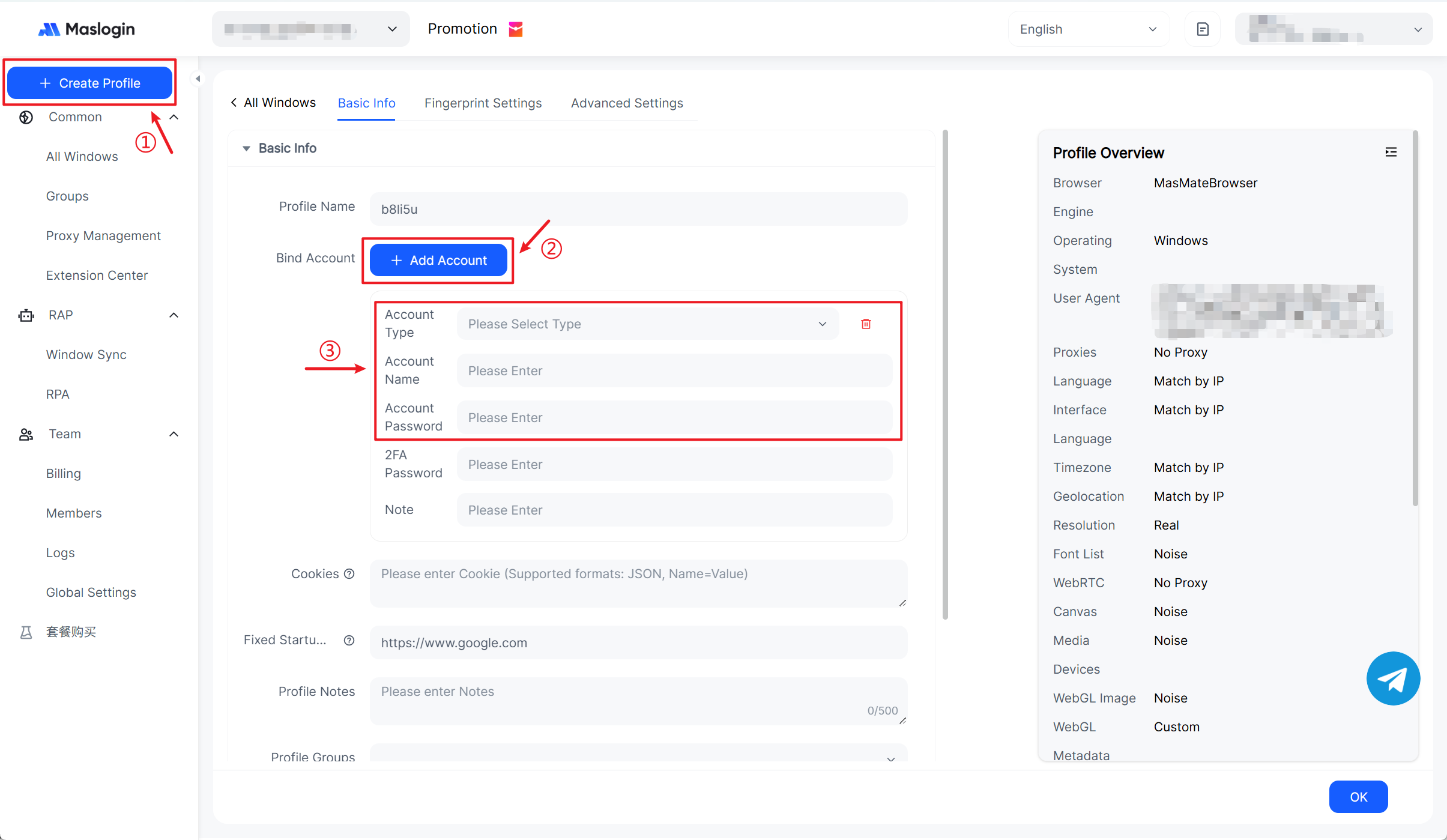
2. Click Create Profile at the top-left to create an independent browser environment. Under Basic Info, click Add Account, select LinkedIn, and enter the required details.
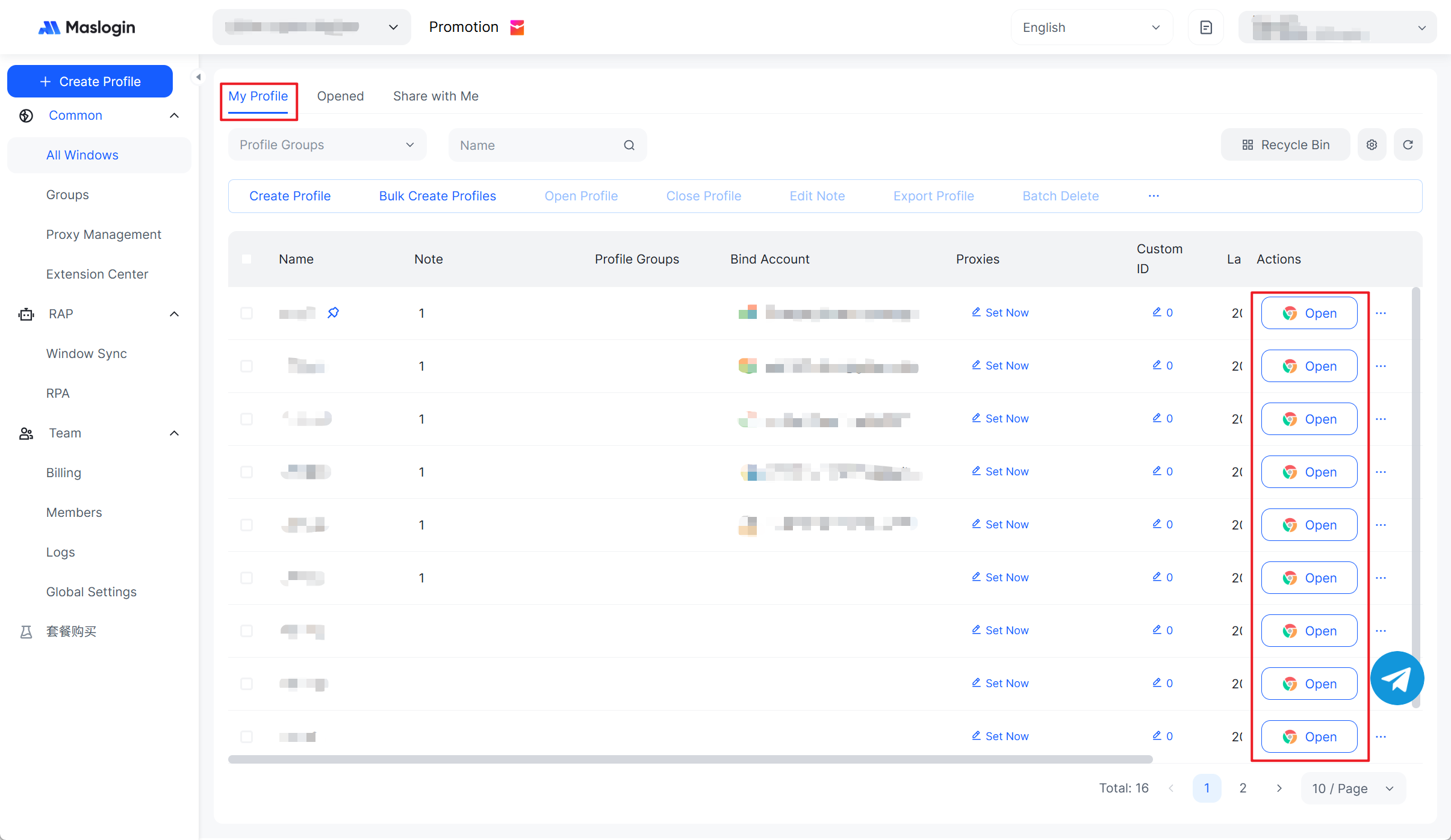
3. After adding the account, go to All Windows › My Profile to find the environment that includes the account. Click Open to launch it.
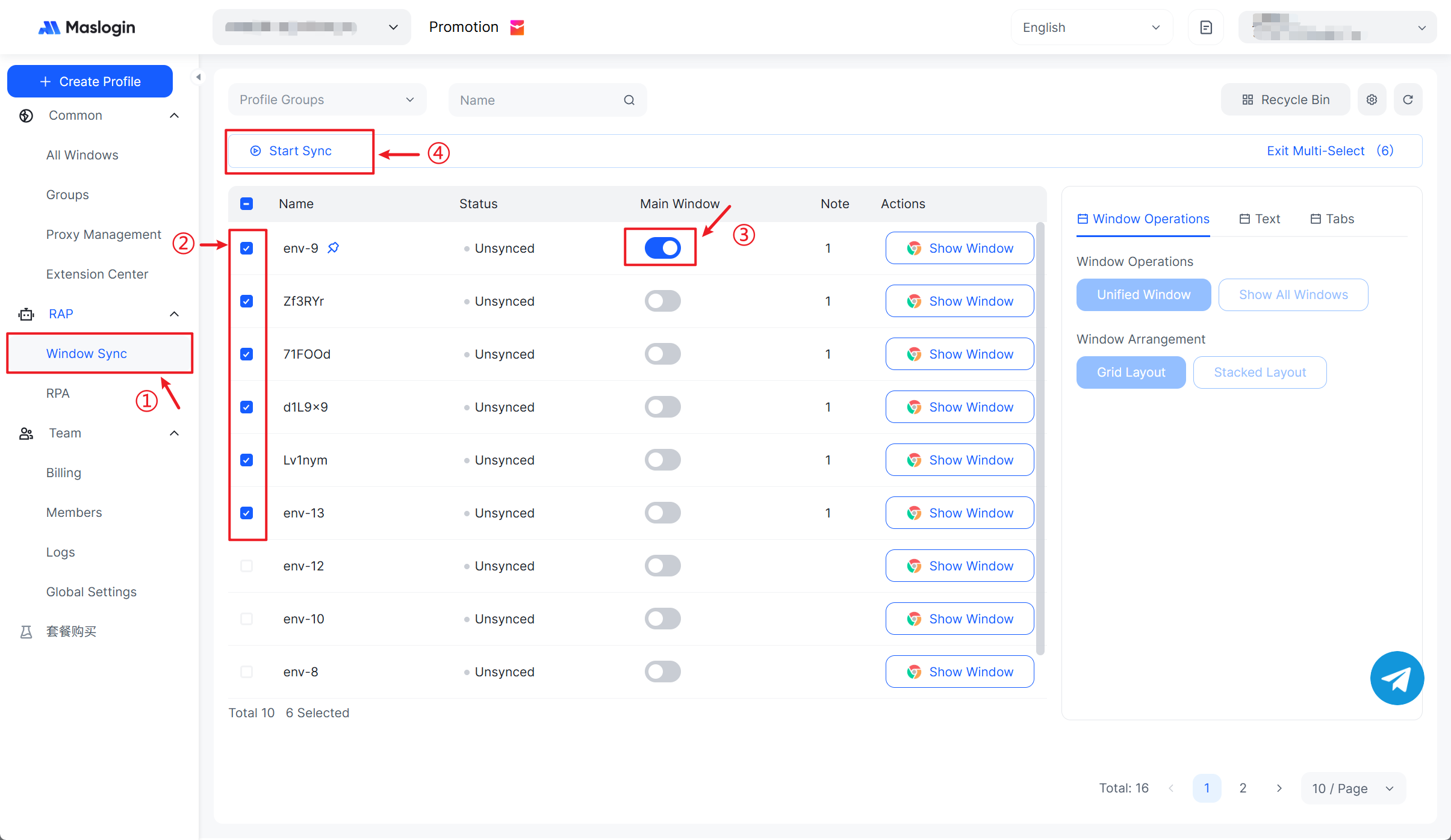
4. To manage multiple LinkedIn accounts simultaneously, open Windows Sync, select the environments you want to open, choose one as the Main Windows (primary control window), and click Start Sync to safely operate multiple LinkedIn accounts at the same time.
FAQ
1) Do I need both work email and identity verification?
No. Identity verification grants the checkmark. Work email is optional but helpful to confirm your employer.
2) How long does identity verification take?
Usually a few minutes on mobile, provided your ID photos and NFC scan (Persona) are clear.
3) Can I verify with a driver’s license?
With CLEAR, you can use a government ID card or passport. With Persona, a passport with an NFC chip is typically required.
4) I can’t find “Verify now.” Where is it?
Go to your profile → three dots → About this profile → Verify (or Other resources → About this profile → Verify now).
5) Does verification improve reach?
Yes—beyond credibility, verified profiles tend to gain more visibility across posts and search.
6) My account is restricted. What should I do?
Complete the identity verification flow and contact LinkedIn Support with any requested ID and screenshots to restore access.




_00000.png)