In many Asian markets, LINE is not just a messaging app — it is a daily infrastructure for chat, voice/video calls, work groups, family communication and even payments. If your LINE account is stolen, banned or confused with other identities, you may lose contacts, work resources, and even personal privacy.
This guide will walk you through:
Where necessary, we will also link to official resources such as the LINE official website and security tools like MasLogin’s official site.
LINE is a cross-platform instant messaging and VoIP application originally popular in Japan, Taiwan, Thailand and other Asian regions, but now used globally.
With a LINE account you can:
Unlike pure anonymous chat apps, LINE accounts are usually tied to phone numbers, emails, or social logins (Google / Apple). This gives you better identity persistence, but also introduces clear security and privacy risks if the account is not properly protected.
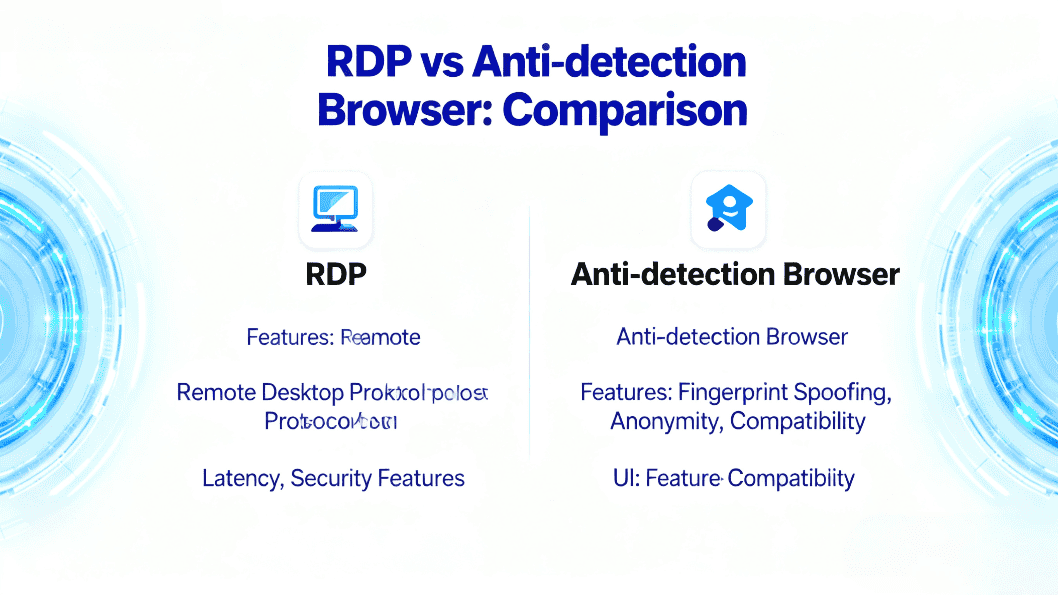
For users who operate multiple online identities (e.g., separate accounts for work, business and personal use), combining LINE with a fingerprint/antidetect browser such as MasLogin can significantly improve safety. If you’re not familiar with the difference between RDP and antidetect browsers, you can read this deep-dive guide:
https://www.maslogin.com/zh-CN/blog/rdp-vs-antidetect-browser-maslogin-guide
To avoid malware or fake apps, always download LINE from the official app stores or the official website:
Install the app and open it. On the first screen you will usually see:
If you already have an account, tap Log in. If not, tap Sign up to start registration.
The YouTube tutorial uses Google sign-in as an example, but in most regions you will see similar options:
Below is a generic process that covers the Google/social sign-up flow.
After tapping Sign up, you will see one or more of the following:
Select the method that matches your habits and region. In the tutorial, the creator only has the Google option available, so they tap Google.
Tip: For long-term account security, using a phone number + strong password is usually more stable, while Google/Apple is more convenient.
If you choose Google:
This step gives LINE initial basic information and binds your LINE account to this Google identity.
Next, LINE will ask you to set up your profile:
You can change both later in settings. Once done, tap the arrow / Next icon to continue.
Even if you are using Google/Apple sign-in, LINE will still ask you to set a password. This makes it easier to log in on other devices or recover your account.
LINE’s password rules typically include:
Recommendations:
Enter your password twice to confirm it, then tap the arrow / Next.
After you submit your password, LINE will finalize the registration.
In most regions, you may also encounter:
Once the process is completed, you will be redirected into the app home screen. Congratulations — your LINE account is now created.
Having an account is only the first step. In real life, many account theft cases come from weak passwords, device theft, or logging in from unsafe environments.
In LINE’s Settings → Account / Security, you should:
On the official site, you can also read LINE’s security recommendations:
https://line.me/en/
Try not to log into your main LINE account on:
If you must log in in a risky environment for work or business, consider using an antidetect browser such as MasLogin to isolate environments and prevent fingerprint correlation between accounts. See:
https://www.maslogin.com/zh-CN/blog/rdp-vs-antidetect-browser-maslogin-guide
In practice, many users need more than one LINE identity:
However, LINE’s official design is closer to “one primary account per phone number / device”. If you simply log out and log into another account repeatedly on the same device or mix devices and VPNs casually, you may trigger risk control, message sync confusion, or even temporary login restrictions.
Common use cases include:
For these scenarios, clean separation of identities and environments is crucial.
If you manage many accounts on one device by:
You may face:
For individuals who only need one extra account, using a second device or a separate OS profile might be enough. But for professional multi-account operators, this is neither safe nor efficient.

MasLogin is an antidetect browser designed for multi-account and cross-platform operations. Instead of juggling multiple physical phones, you can create independent browser profiles, each with its own:
This is extremely useful for LINE-related workflows that involve web versions, web-based management tools or other integrated platforms.
Using MasLogin, you can:
For an overview of how antidetect browsers differ from traditional RDP solutions, you can reference:
https://www.maslogin.com/zh-CN/blog/rdp-vs-antidetect-browser-maslogin-guide
Typical benefits when combining LINE with MasLogin:
While LINE’s mobile app itself is not directly controlled by a browser, a lot of peripheral operations (marketing, promotion, customer portals, associated web tools) can be safely handled inside MasLogin environments.
Q1: Do I need a phone number to create a LINE account?
In many regions, a phone number is the most stable way to register and recover your account. However, LINE increasingly supports Google / Apple sign-up as shown in the tutorial. For long-term use, it is still recommended to bind a phone number where possible.
Q2: Is it safe to sign up with my Google account?
Yes, as long as your Google account itself is secure (strong password, two-factor authentication, no malware on your device). LINE will receive basic information such as your name, email, and profile photo. You can manage these permissions in your Google account settings.
Q3: Can I have multiple LINE accounts on one device?
Officially, LINE is designed around one main account per phone number/device. Some users bypass this by using work profiles, multiple devices or emulator solutions, but these approaches carry risk. For web-related and cross-platform operations, it’s safer to use environment isolation tools like MasLogin to separate identities at the browser level.
Q4: How do I keep my LINE account from getting hacked?
Use a unique, strong password, enable any available security or login alerts, avoid logging into your main LINE account from public devices, and regularly review active devices. For advanced users who operate many online identities, manage web-based operations through secure, isolated profiles in tools like MasLogin.
Q5: What should I do if I lose access to my phone?
If your phone is lost or stolen, immediately log into your LINE account on a trusted device and review active sessions. Change your password and check if your account is bound to an email/Google/Apple login for recovery. You can also refer to guidance on the LINE official website.
Outline
_00000.png)